
EXO Translation
Consoles only understand controller sticks and buttons. Translation is how the EXO turns your mouse, keyboard or another controller into those stick and button signals, a thousand times a second. This page explains each step and the settings that shape it.
The big picture
Your mouse, keyboard and controller plug into the EXO. Every 1 millisecond (1000 times a second), the EXO reads what they did, works out the matching stick and button positions, and passes them to its output stage. The output stage presents them to the console as a controller (see Input simulation).
| Step | What goes in | What happens | Settings that affect it |
|---|---|---|---|
| 1. Read | Mouse counts, key presses, controller sticks and buttons | The EXO collects everything from the last millisecond | Input type (Device screen), Pairing |
| 2. Normalise | Raw mouse counts | Counts are scaled to a 1000-DPI reference, so your DPI doesn't change the feel | Mouse DPI |
| 3. Sensitivity | Hand speed | Hand speed becomes stick speed using your Speed (cm/360) | Speed (Hip / ADS), Y Scale, Fine aim |
| 4. Curve and deadzone | Stick speed | The curve reshapes it. Output limits are applied | Response curve, deadzones, Limit |
| 5. Smoothing | Shaped output | Optional filtering to even out jitter | Smoothing, Feel, Start-up feel |
| 6. Game deadzone | Smoothed output | The output starts past the game's own deadzone, so small moves register | Calibration / anti-deadzone |
| 7. Mappings and scripts | Stick and button state | Your mappings, Smart Actions and scripts are applied | Mappings, Scripts, AI Scripts |
| 8. Send | Final controller state | Passed to the output stage and on to the console | Update rate, Connection Method |
Mouse to stick
Why it isn't simple
A mouse reports how far it moved. A stick reports where it's pushed, and the game turns that into a turning speed. On top of that, every game has its own stick curve and deadzone. A deadzone is the area near the stick's centre that the game ignores. To make a mouse feel like a mouse, the EXO has to undo the game's curve and step over its deadzone.
Sensitivity: cm/360
Mouse speed is set as Speed 0–100 on the Aim screen. The app also shows it as cm/360, the distance you move the mouse to turn one full circle (cm/360 = 500 ÷ Speed). Hip and ADS each have their own Speed. ADS can simply follow hip. See Aim settings.
Curves
A curve maps how fast your hand moves (along the bottom) to how hard the stick is pushed (up the side). A straight line keeps that relationship even. Bending it changes how slow movements feel compared with fast ones. You draw curves in the curve editor, which starts with 7 handles and lets you use between 2 and 16. Your curve is sent to the EXO as a list of up to 16 points.
Smoothing
Smoothing averages movement over a short time so tiny jitters don't reach the screen. The EXO offers Standard smoothing (adaptive: it smooths slow movement more than fast) and Classic smoothing (XIM APEX-style Smooth, Decay and Synch). Each can be set separately for hip and ADS. For controller sticks, smoothing is a single strength for each stick.
Quantization
Quantization rounds output to fixed steps, either of speed or of direction. It's off by default and set on the Aim screen.
Velocity calibration (Aim Speed Match)
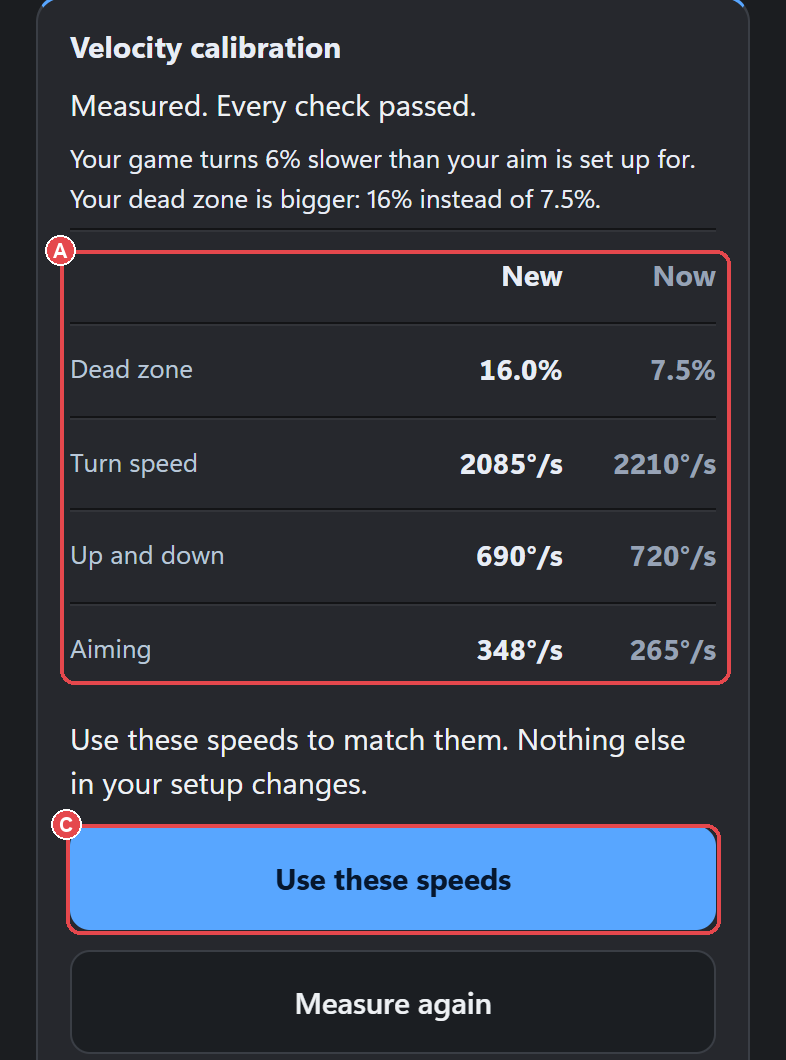
Every game turns at its own speed for a given stick position, and that relationship is rarely a straight line. Aim Speed Match measures it so your mouse can match it.
- Open a config, then Translation → Calibration (it's also in Aim → Advanced).
- Set the in-game sensitivity and deadzone the app asks for, and record them in the fields provided.
- Run the guided sweep, following the app's steps. It measures how fast the game turns. Stick force limits how far the stick is pushed while measuring.
- The EXO fits a model of the game from the results: how fast it turns left/right and up/down at full stick, where its deadzone sits, and the shape of its curve, stored as a lookup table of up to 16 points.
- From then on, Speed on the Aim screen gives a real, predictable cm/360 in that game.
| Setting | Range | Default | What it does |
|---|---|---|---|
| Hip X / Hip Y / ADS X / ADS Y | 180–36000 ms per turn (shown as deg/s) | Measured | The measured turn speeds the translator uses |
| Stick force | Off, 10, 15, 20, 25, 30, 40, 55 % | Stored | Limits how far the stick is pushed while measuring |
| Game dead zone / Dead zone ADS / Stick while measuring / Full turns for X (Manual calibration) | Steppers | From game data | Inputs for measuring by hand |
| In-game sensitivity it was measured at | Text | From pack | Records the in-game setting the measurement used |
| In-game dead zone (optional) | Text | From pack | Records the in-game deadzone |
A calibration pack is a finished measurement for a game. Pick one on the Device screen and you skip the sweep. You can also save your own measurement as a game pack. Games without a measurement use the EXO's generic model. On the Translation screen, Use this game's translator, standard and restore previous switch between the game's measured model and the generic one.
Keyboard movement
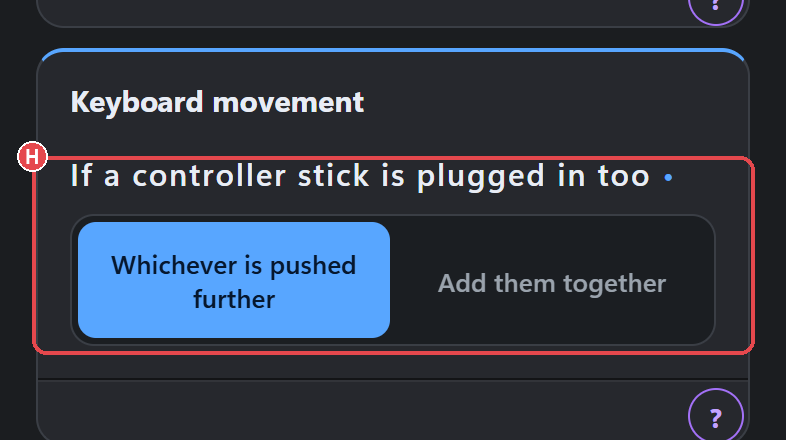
Keys are either on or off, but a movement stick has a range. Keyboard movement turns WASD into stick movement, either straight to full or ramped up and down.
| Setting | Range | Default | What it does |
|---|---|---|---|
| Smooth keyboard movement | On / off | On | Ramps the stick instead of jumping to full |
| Walk speed | 0–100 % | 55 % | How far the walk key pushes the stick |
| Time to full run | 0–600 ms | 120 ms | Ramp-up time |
| Time to stop | 0–400 ms | 80 ms | Ramp-down time |
| Diagonal speed | Same as straight, Faster | Same as straight | Whether diagonals push further than straight lines |
| Turn assist | 0–100 % | 0 | Helps quick direction changes |
| Small movement boost | 0–90 % | 0 | Steps past the game's deadzone for small key moves |
| If a controller stick is plugged in too | Whichever is pushed further, Add them together | Whichever is pushed further | How a real stick and keys combine |
| Sync to game | Off, 60, 120 Hz | Off | Paces output to the rate the game reads the stick |
Controllers to the console
A controller plugged into the EXO goes through the same engine. Its sticks get your curve, deadzones, anti-deadzone (up to 50 % in the engine; the app offers 0–40 %), smoothing and Limit from the Aim screen, and its buttons go through your Mappings and scripts. Each stick has its own inner and outer deadzone, and the deadzone shape is round by default. Because of this, you can use a controller from one console family on another, for example a PlayStation controller on Xbox.
Behavior simulation
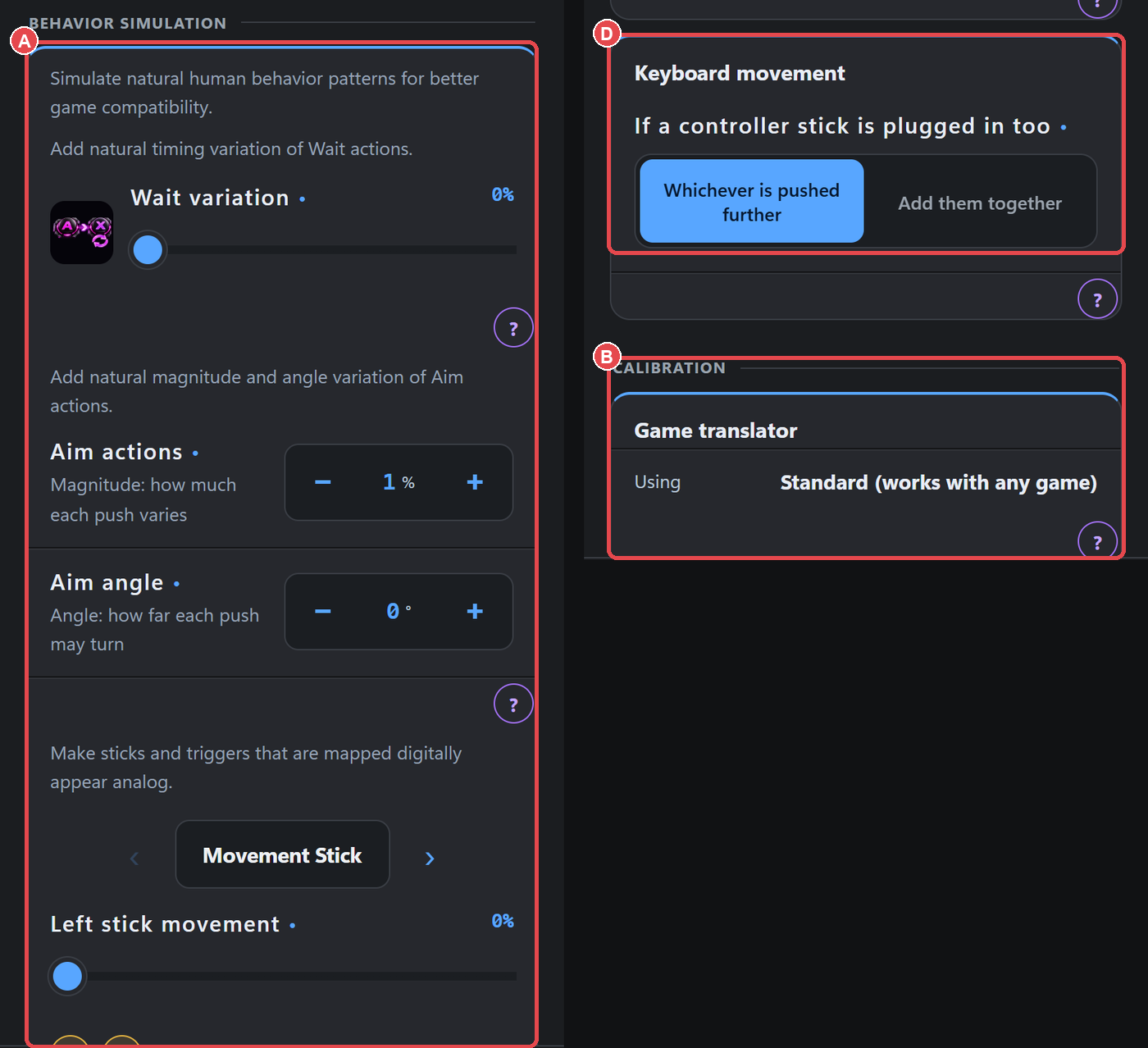
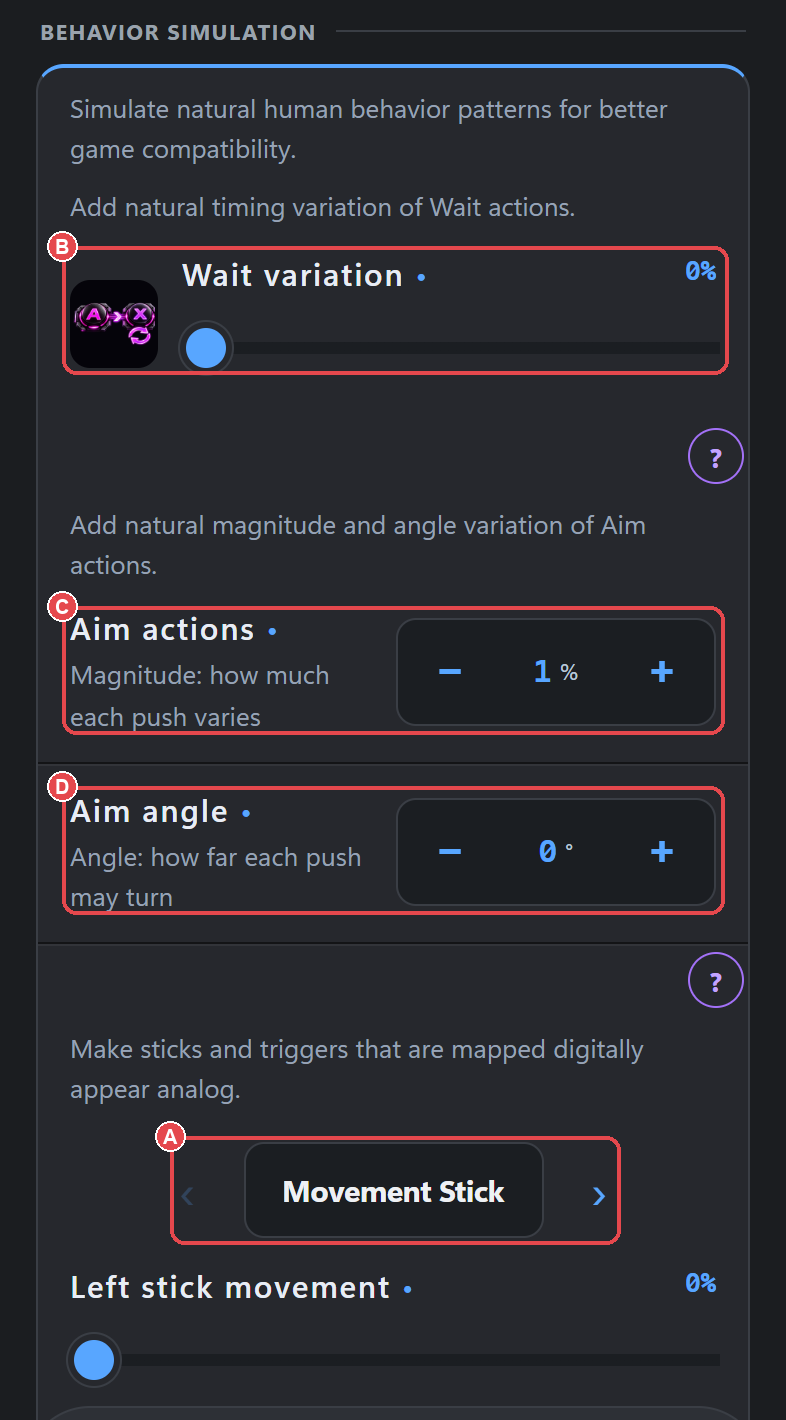
Behavior simulation (on the Translation screen) adds controlled, random variation to outputs that would otherwise be perfectly identical every time, such as key-driven sticks, triggers driven by keys, and script steps. Every setting is 0 (off) by default. Each sets the maximum amount of random variation for its output.
| Setting | Range | Default | What it does |
|---|---|---|---|
| Script timing | 0 ms up to the app's maximum | 0 | Random timing variation on script steps |
| Wait variation | 0–50 % | 0 | Lengthens Smart Action waits by a random amount. It never shortens them |
| Aim actions | 0.5–10 %, step 0.5 | Stored | How much each scripted stick push can vary in size |
| Aim angle | 0–15°, step 0.5 | Stored | Rotates each scripted stick push by a random angle up to this |
| Left stick movement | 0–100 % | 0 | Analog variation on key-driven movement |
| Aiming stick keys | 0–100 % | 0 | Eases keys bound to the right stick instead of jumping |
| Right stick look | 0–100 % | 0 | Analog variation on look |
| Triggers | 0–100 % | 0 | Eases key-driven L2/R2 in instead of jumping straight to full |
Bringing settings from XIM
Under Legacy Devices → Copy your XIM settings in you can type in your XIM MATRIX, APEX or NEXUS numbers, or paste a XIM MATRIX share code. A preview marks each field Same, Close or Not available. Tap Apply, and Undo is there if you need it. See Settings reference for the import fields.