EXO App Tour
The ZeroStick app is where you set up and tune your EXO. This page walks through every screen: what it's for, and how to get to it. The app is free, and you don't need an account.
The same app runs on your phone (iPhone or Android), on a Windows PC over USB, and inside EXO Studio's My EXO tab. Every screen works the same way whichever link you use. Bluetooth or USB just carries the settings to the EXO.
How the app is organised
Everything branches off three places:
- HOME shows the config you're playing with right now.
- The ⋯ More sheet (the three dots at the top right) holds your device, your Configs and Global Settings.
- The editor menu opens when you open a config. It groups the config's screens into Essentials (Device, Aim, Mappings), Scripting (Scripts, AI Scripts, Screen Assist, Translation) and Advanced (Legacy Devices, EXO Studio).
A config is one complete setup: your console, your input devices, aim settings, button mappings and scripts. You can keep several configs on the EXO and switch between them.

| Screen | How to get there | What it's for |
|---|---|---|
| Device list | First page when the app opens | Pick which ZeroStick product to open |
| HOME | Opens once you're connected | The config you're playing, live inputs, Passthrough Mode, Wi-Fi |
| Configs | ⋯ More → Configs | List, activate, create and paste configs |
| Device (Overview) | Open a config → Device | Name, colour, console, update rate, mouse DPI, input type |
| Aim | Open a config → Aim | Sensitivity, curves, smoothing, deadzones (see Aim settings) |
| Mappings | Open a config → Mappings | What each button sends |
| Scripts | Open a config → Scripts | Smart Actions: turbo, combos, timed presses (see Smart Actions) |
| AI Scripts | Open a config → AI Scripts | Scripts that switch on for the gun you're holding |
| Screen Assist | Open a config → Screen Assist | Screen-watching features |
| Translation | Open a config → Translation | Mouse-to-stick behaviour, calibration, keyboard movement |
| Legacy Devices | Open a config → Legacy Devices | GPC script device and XIM settings import |
| EXO Studio | Open a config → EXO Studio | Lets the EXO Studio PC app talk to the EXO |
| Global Settings | ⋯ More → Global Settings | App-wide options, Passthrough shortcuts, accessibility |
Device list
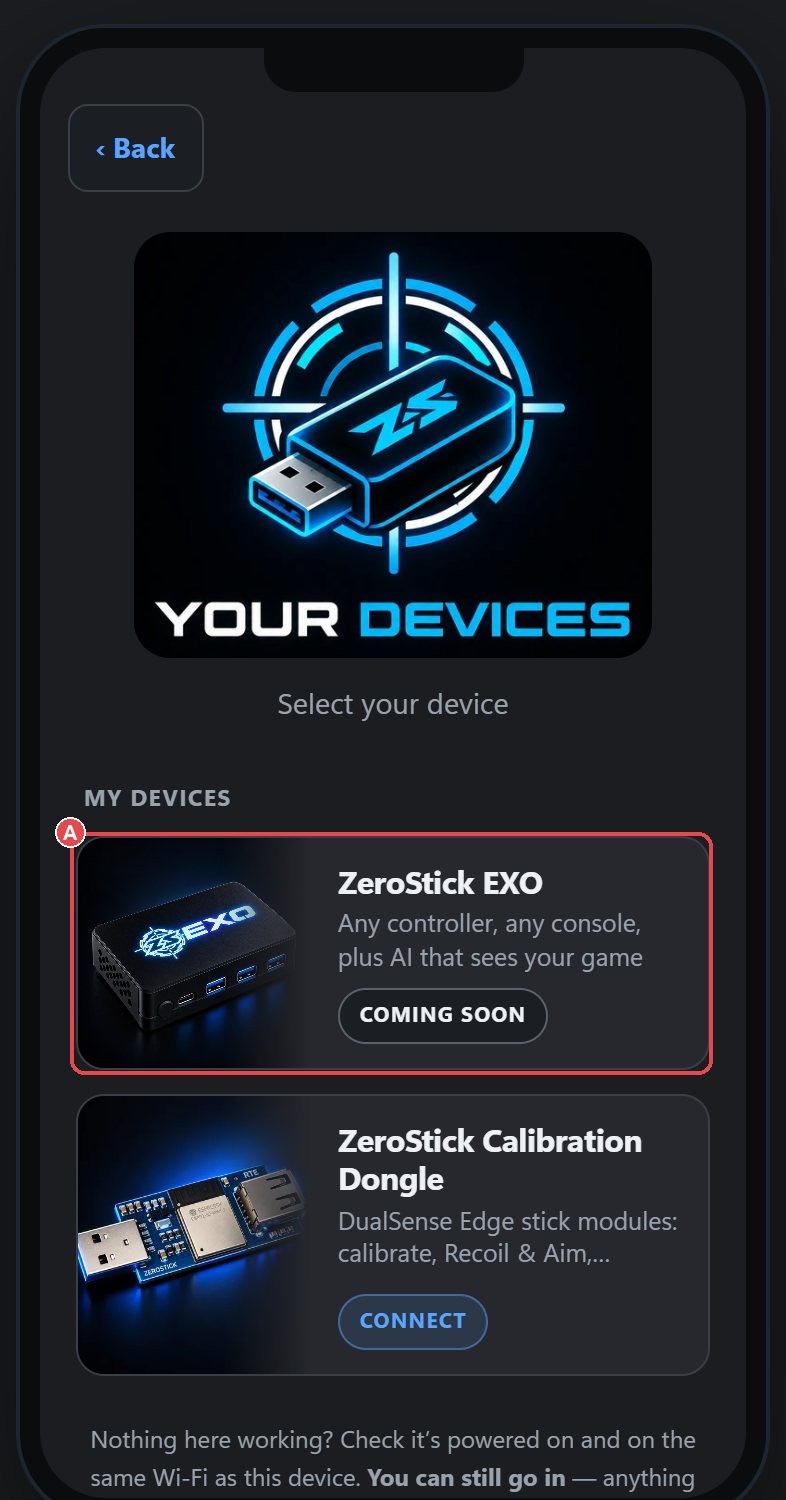
This is the first page you see. It shows one tile for each ZeroStick product. Tap the ZS EXO tile to open your EXO. After that, the app opens the last device you used automatically.
Connecting (Bluetooth or USB)
Until the app reaches your EXO, it shows a connect screen with a Connect button.
- Phone (Bluetooth): the first time, tap Connect, choose ZeroStick EXO from the list and accept your phone's pairing request. Pair shortly after powering the EXO on, while it's in its pairing window. After that, the app remembers your EXO and connects by itself whenever you open it.
- PC (USB): plug the EXO's USB-C port into the PC, open the app and choose the port on the connect screen.

For the full first-time setup, see Quick start.
HOME
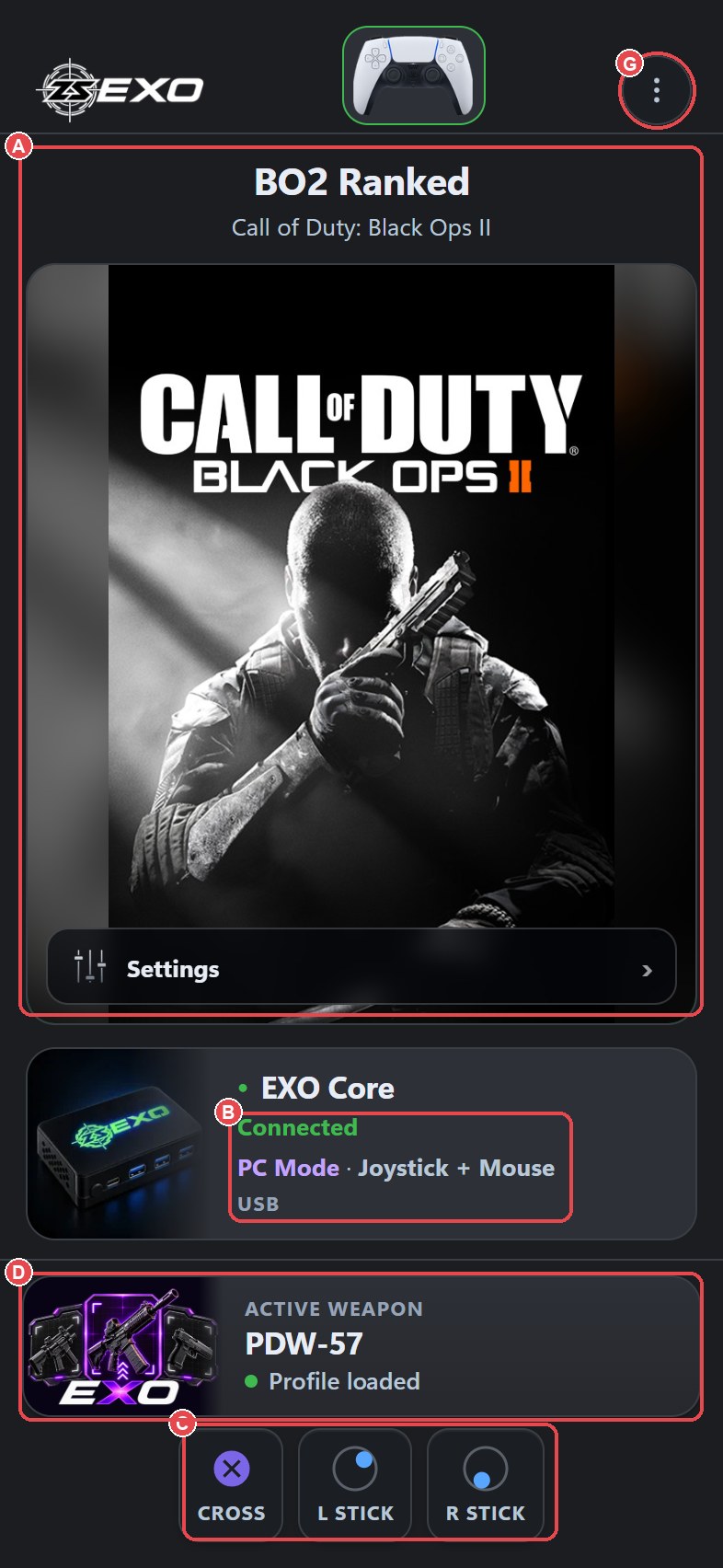
HOME shows the config you're playing with. It shows:
- Device pills for each connected controller, keyboard and mouse. The mouse pill has a Check rate button that tests how often your mouse reports.
- What you're pressing right now, a quick way to check your inputs are getting through.
- The Active Weapon card, which shows the gun AI Scripts thinks you're holding.
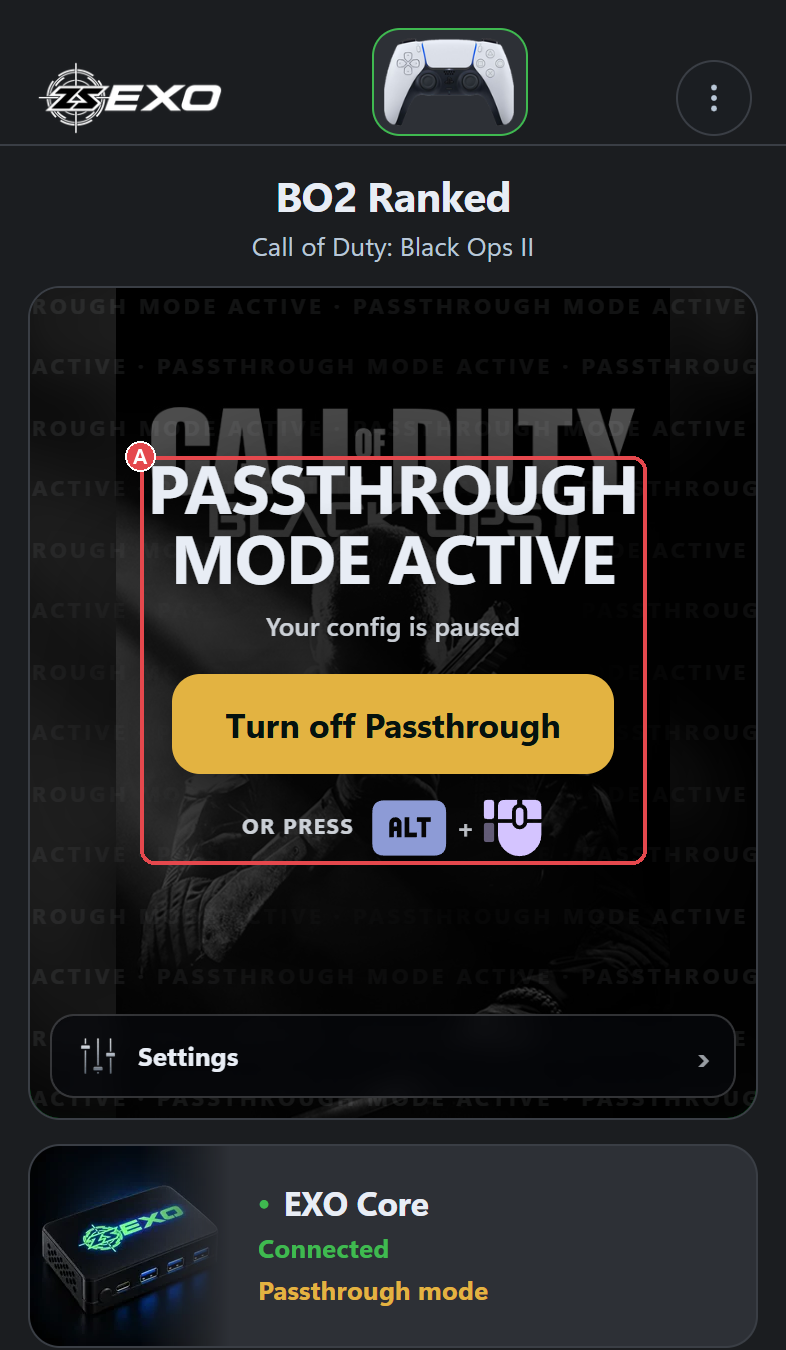
- The Passthrough Mode control.
- The WI-FI chip next to "EXO Core".
Tap the config to open it for editing.
Wi-Fi
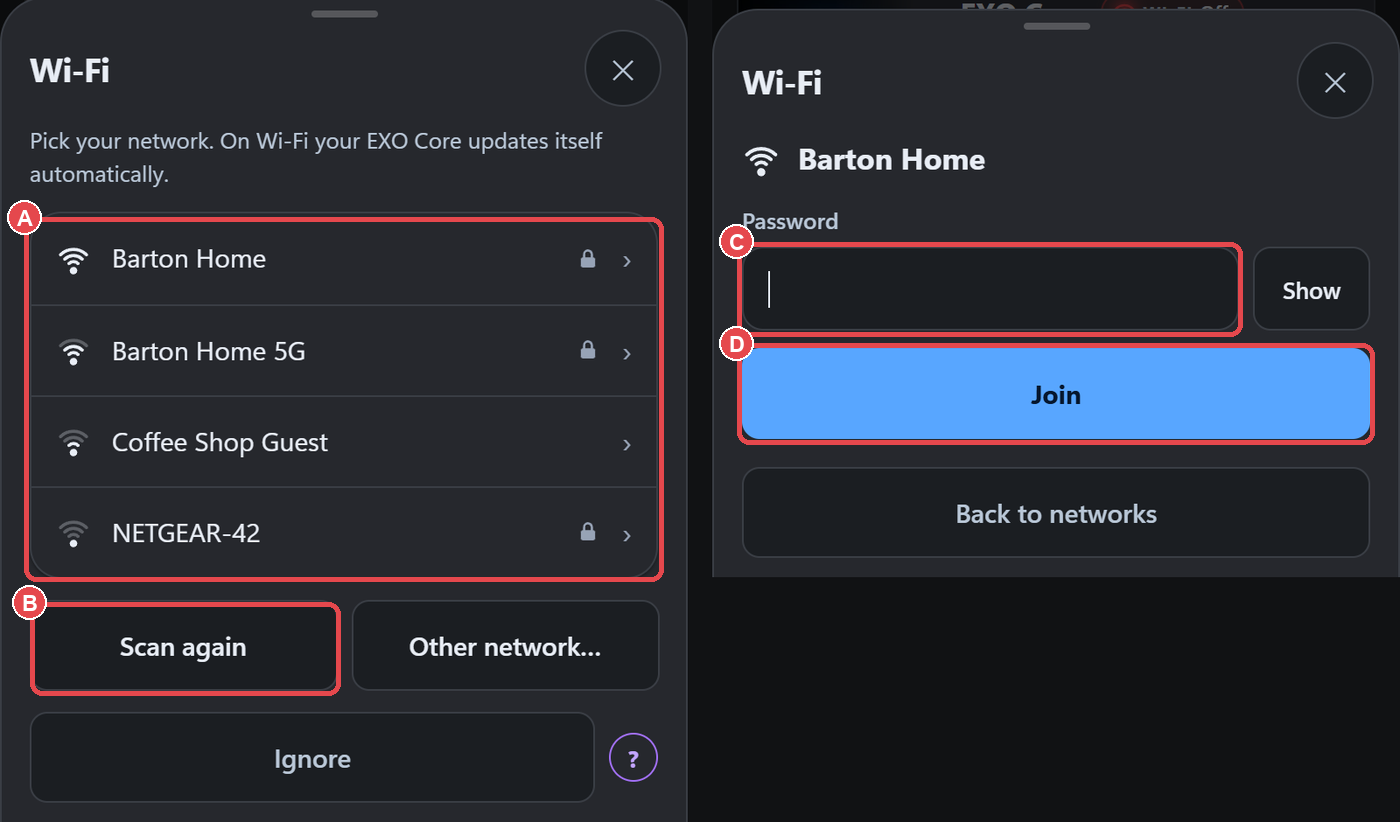
The WI-FI chip is green when the EXO is on your network, and amber or red when it isn't. Tap it, open the Wi-Fi sheet, choose your network, type the password and tap Join. The sheet also has Scan again, Forget and Ignore. The first time, the app asks "Connect your EXO to Wi-Fi"; you can tap Skip.
This connects the EXO to your home Wi-Fi, which it uses for updates. Your phone still talks to the EXO over Bluetooth or USB.
Passthrough Mode
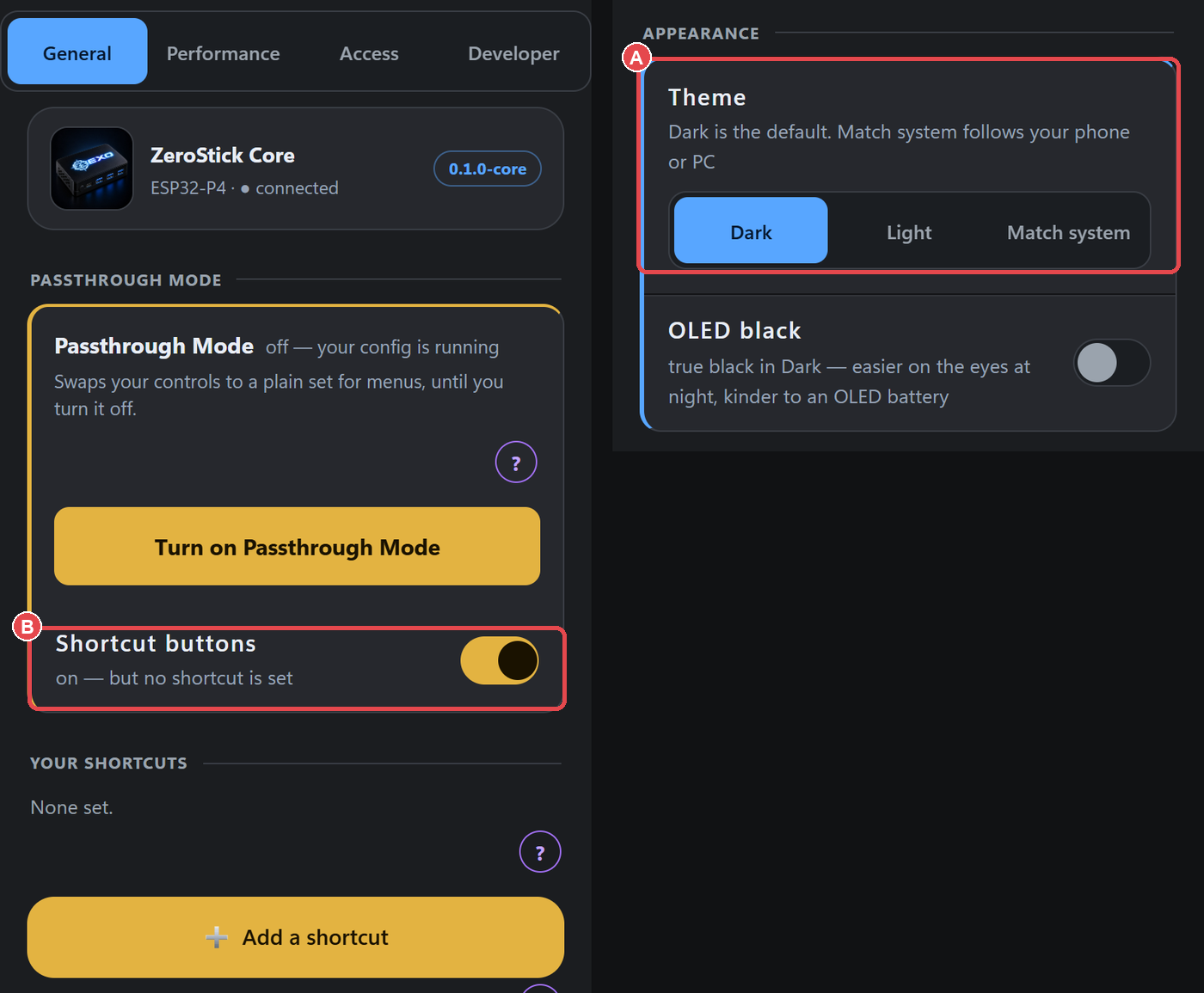
Passthrough Mode hands your input straight to the console or PC so you can use menus, without your config's mappings in the way. Turn it on from HOME. Turn it off again to go back to your config. You can also toggle it with a button combo, which you set in Global Settings → General.
Your board
From ⋯ More, open your device to see the Your board sheet: the engine's tick count, the last input pressed and the devices plugged into the EXO. Tap Check again to refresh.
Configs
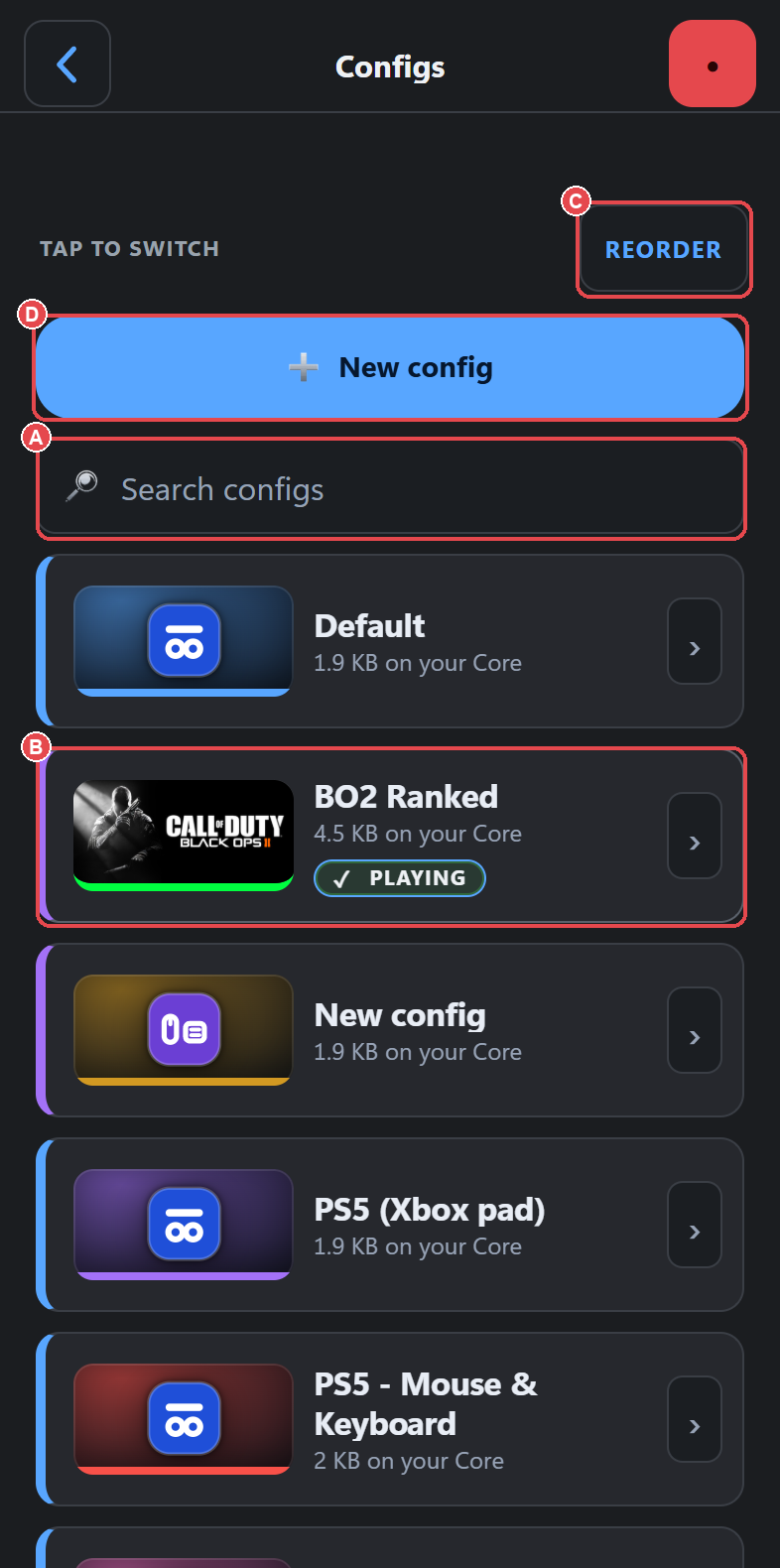
Open ⋯ More → Configs. You get a list of the configs stored on your EXO, with search and up/down arrows to reorder them.
- Tap a config to make it the active one.
- New config starts a step-by-step wizard: pick the game, pick what you play with (mouse and keyboard, controller, or joystick and mouse), give it a name and colour, then save.
- Paste a config adds a config someone copied and shared with you.
- You can set your own photo behind a config's banner.
When you leave a config you've changed, the app asks whether to Save or Discard.
Device (Overview)
This is the first screen in a config's editor. From top to bottom:
- Game banner: tap it to set the game. The camera key sets a photo.
- Name and colour: use the ‹ swatch › arrows to pick a colour, or tap the swatch for a colour wheel. The colour also lights your controller's light bar. Duplicate copies the config. The ••• menu holds Name, Description, Copy/Paste, Light bar and Delete.
- Game Settings: the aim preset and the in-game settings this config expects.
- Update Rate and Mouse DPI.
- Connection Method: which console you're playing on. On PS5 it also shows the PS5 connection state. Under it, What you play with sets your input type.
- Any warnings about the config.
- An Advanced fold: your controller, Sending to the console, PC output and Pairing.
The Adapter is sending inputs switch is your kill switch. Turn it off and the EXO stops sending anything to the console straight away.

Every setting on this screen is listed in the Settings reference. For console setup, see Xbox, PS5 and PC.
Aim
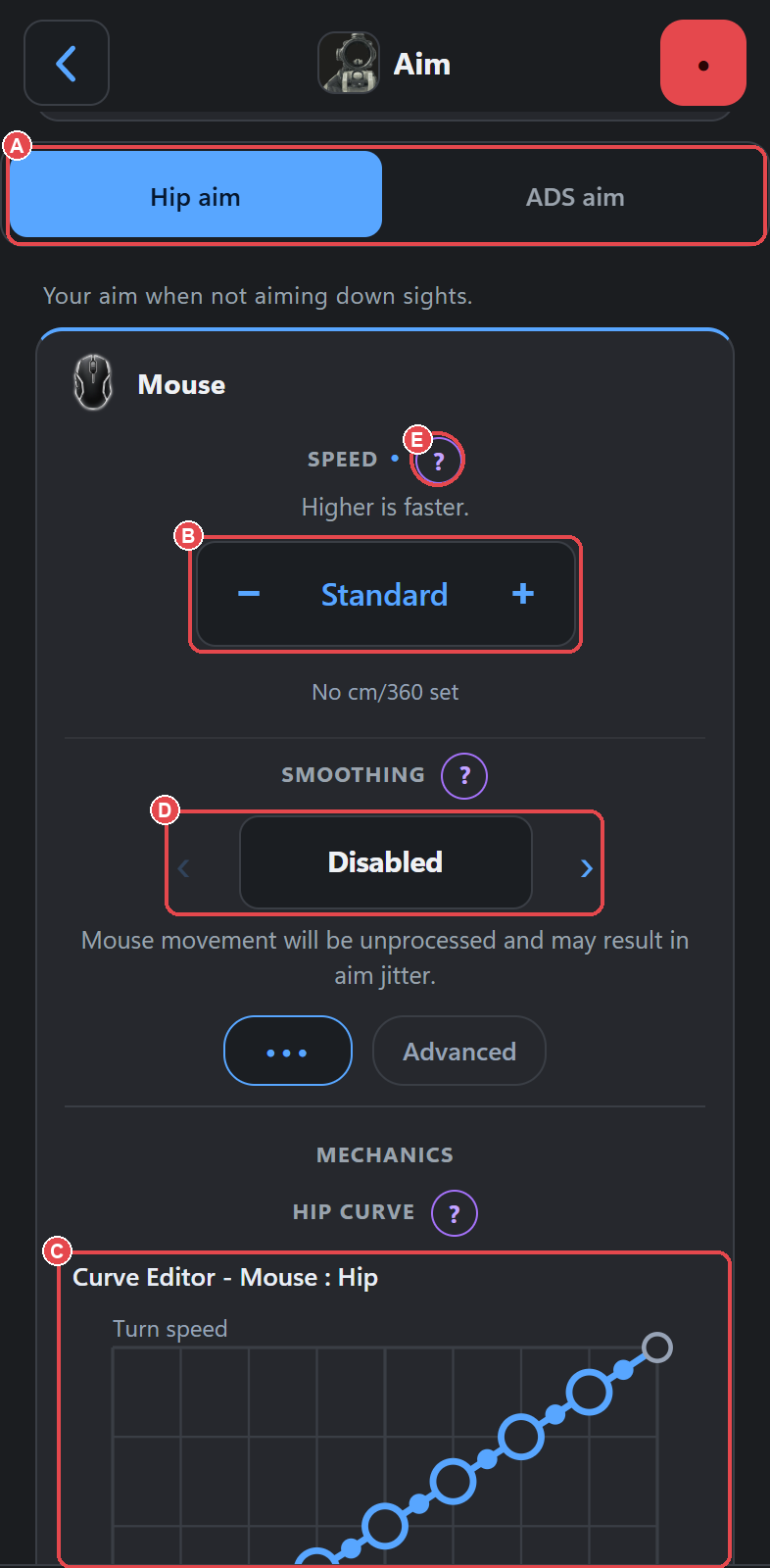
This screen tunes how your mouse or sticks move your aim. It has a Hip page and an ADS page (ADS means aiming down sights); swipe between them. Each page has Speed, the response curve, smoothing and more, with an Advanced section at the bottom. Tap the purple ? next to any setting for an explanation. The full walkthrough is on Aim settings.
Mappings
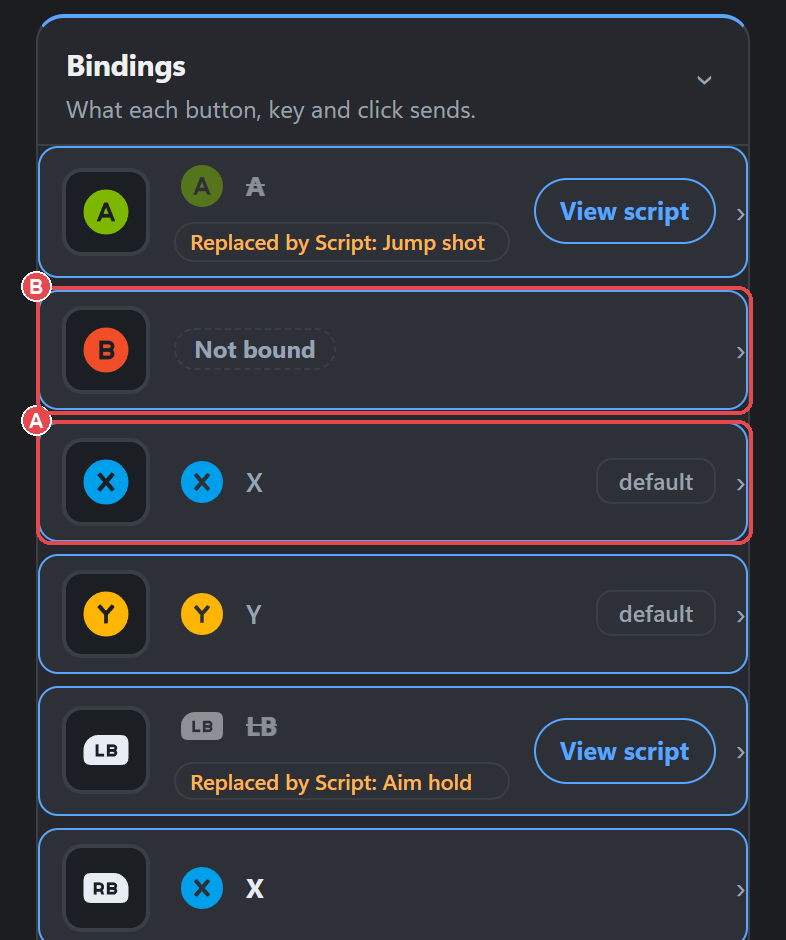
One row per button, showing what that button sends to the console. Tap a row to rebind it, picking a key or a controller button. A button set to "none" shows Not bound and sends nothing.
Two related screens are reached from the same area: Modifiers (shift layers: hold one button to change what others do) and Roles (which button counts as fire, which counts as aim, and so on).
Scripts (Smart Actions)
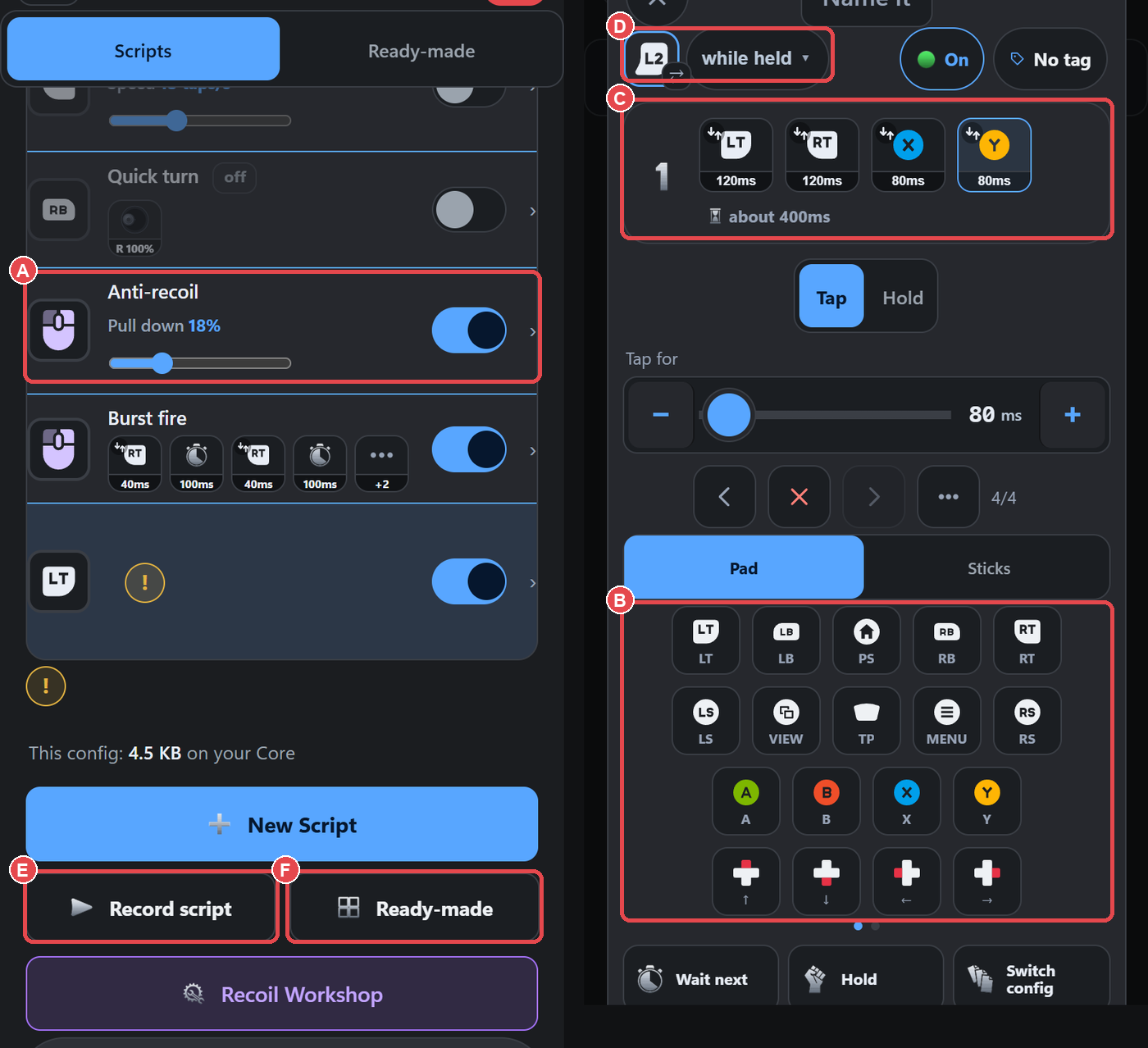
Turbo, combos, sequences and timed presses. Each script is one row in the list. Open one to edit it: tap moves from the palette to add steps, set what triggers it, then Save. There's also a Recorder (press Start, play the moves, press Stop, and your moves become steps), a Library of ready-made actions, and Share live / Join for building a script with someone else. See Smart Actions, Scripts and Script timing.
AI Scripts
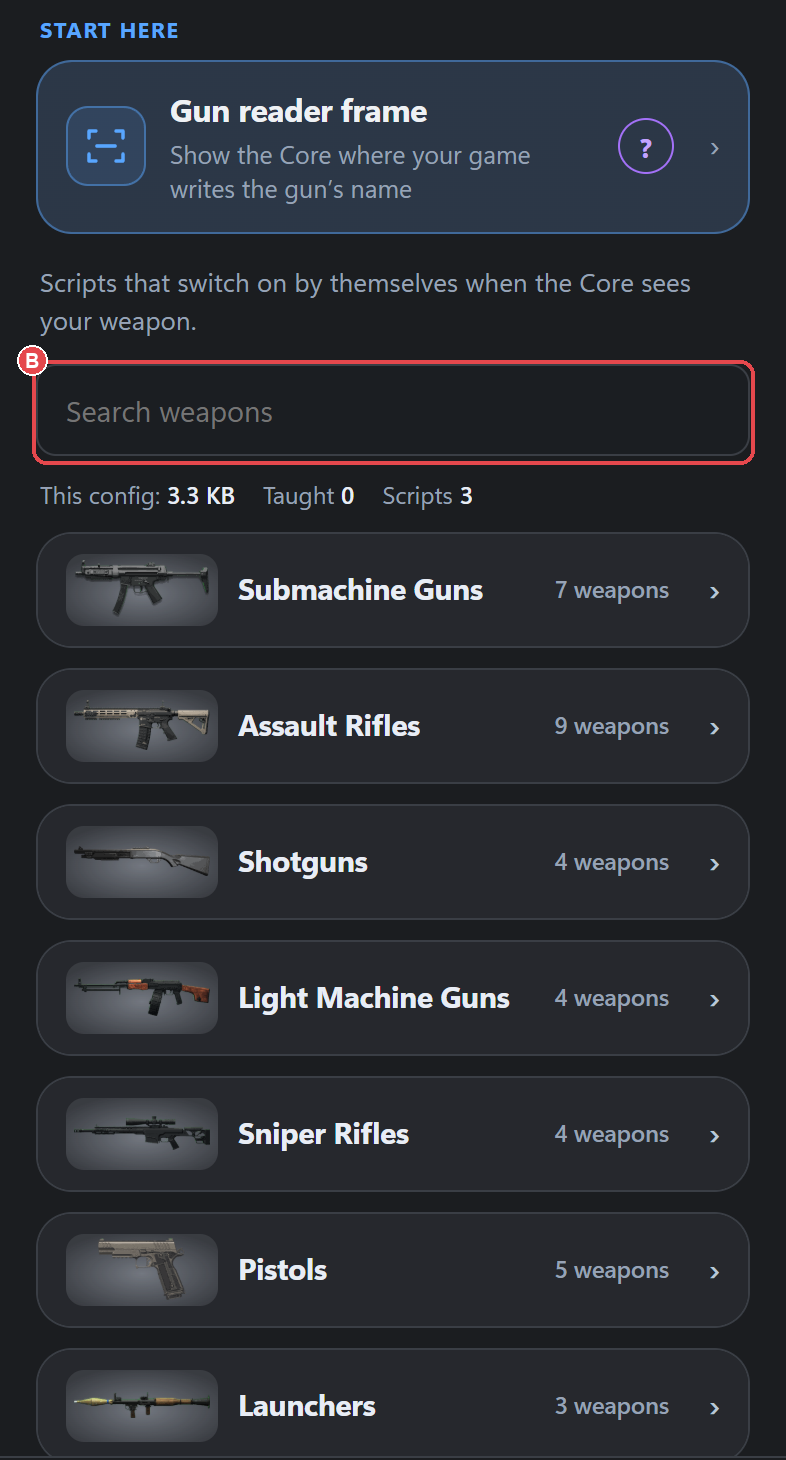
Scripts for each weapon. The EXO works out which gun you have out and turns on that gun's scripts. HOME shows the result on the Active Weapon card. You can switch recognition on or off for each weapon type, search the weapon list, and give different scripts to different rarity tiers. The Recoil Workshop is in this area too. See AI scripts and Recoil Workshop.
Screen Assist
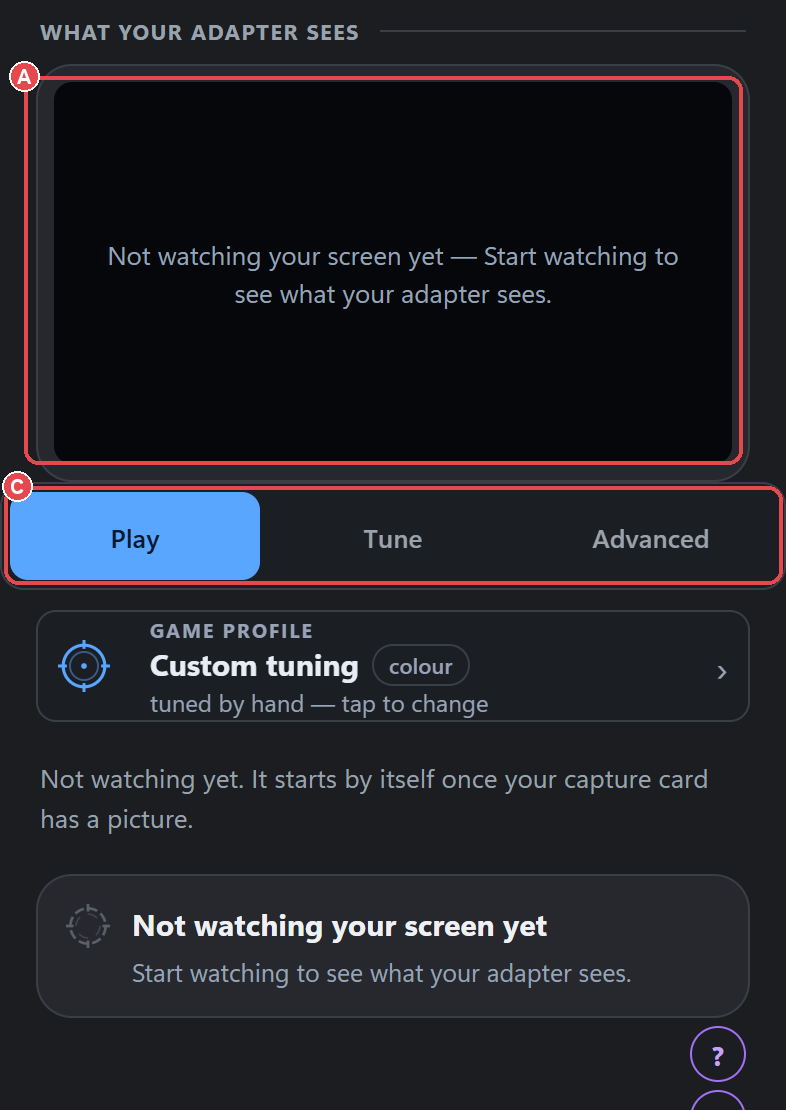
Shows the screen the EXO is watching through its capture input. Here you draw boxes over parts of the screen (search here, ignore here, watch a colour), choose vision packs and set up shot timing. The sheets Measure my delay, This area and Game profile open from here. The live picture updates slowly over Bluetooth; that's normal.
Translation
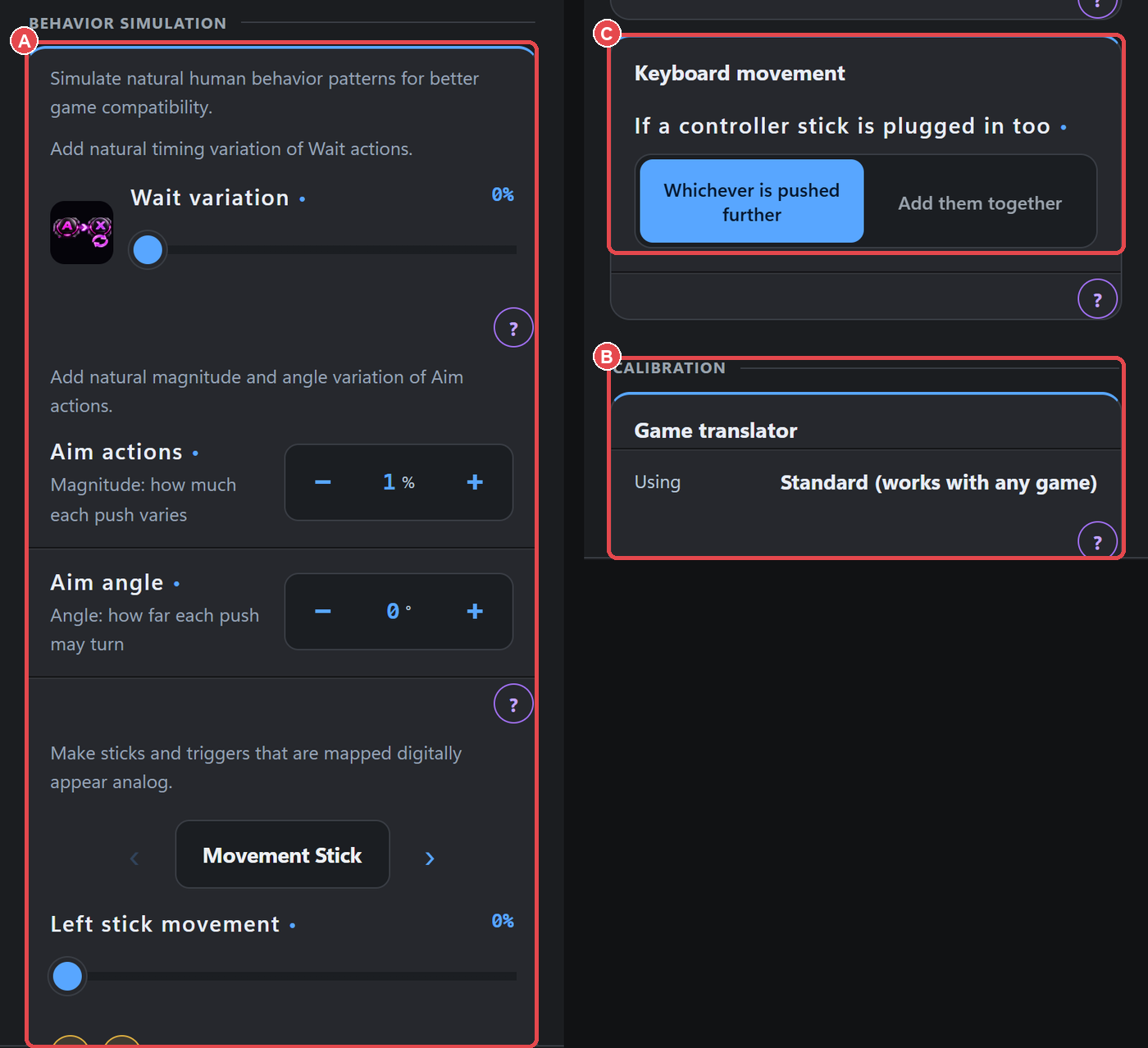
Controls how mouse and keyboard become stick movement: Behavior simulation, Calibration, the mouse speed curve and Keyboard movement. See How translation works.
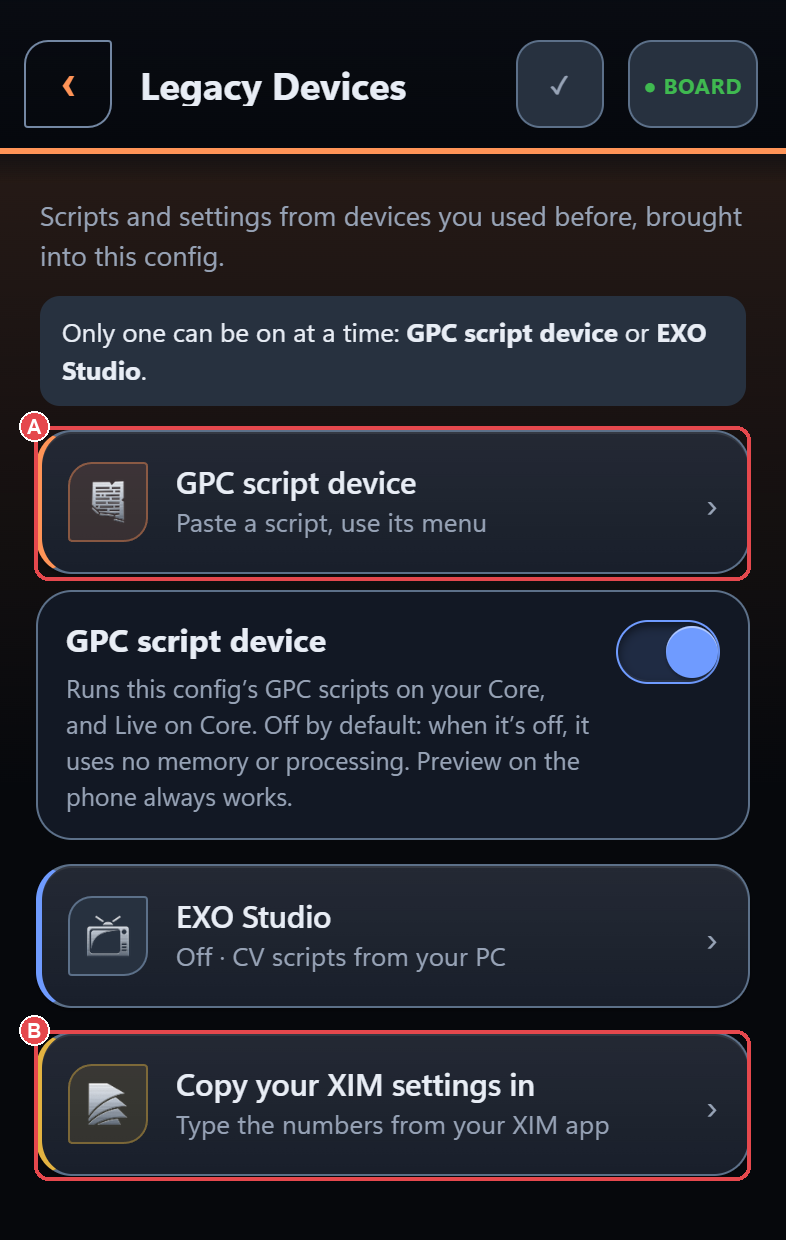
Legacy Devices
Two doors:
- GPC script device turns the app into a Cronus Zen-style device with 8 memory slots. Paste a GPC script into a slot, preview it on the phone, then send it to the EXO. See Scripts.
- Copy your XIM settings in (mouse configs only) brings over your XIM numbers or a XIM MATRIX share code. A preview marks each field Same, Close or Not available. Then tap Apply. Undo is there if you change your mind.
EXO Studio
Holds the EXO Studio switch, which lets the EXO Studio PC app send to your EXO. It and the GPC script device can't both be on. The app asks before switching, and the switch takes a moment. See EXO Studio.
Global Settings
Open ⋯ More → Global Settings. These settings apply to the whole app, not to one config.
- General: theme, your board's name, Passthrough Mode shortcuts, Tournament Mode, changing config from the controller, script menu light and buzz, and credits.
- Performance: engine and connection health, restart service, logs.
- Access: one tap makes everything easier to see. There are also separate switches for text size, high contrast, reduce motion, bigger touch targets and hold-repeat speed.
Every option is listed in the Settings reference.
Legal
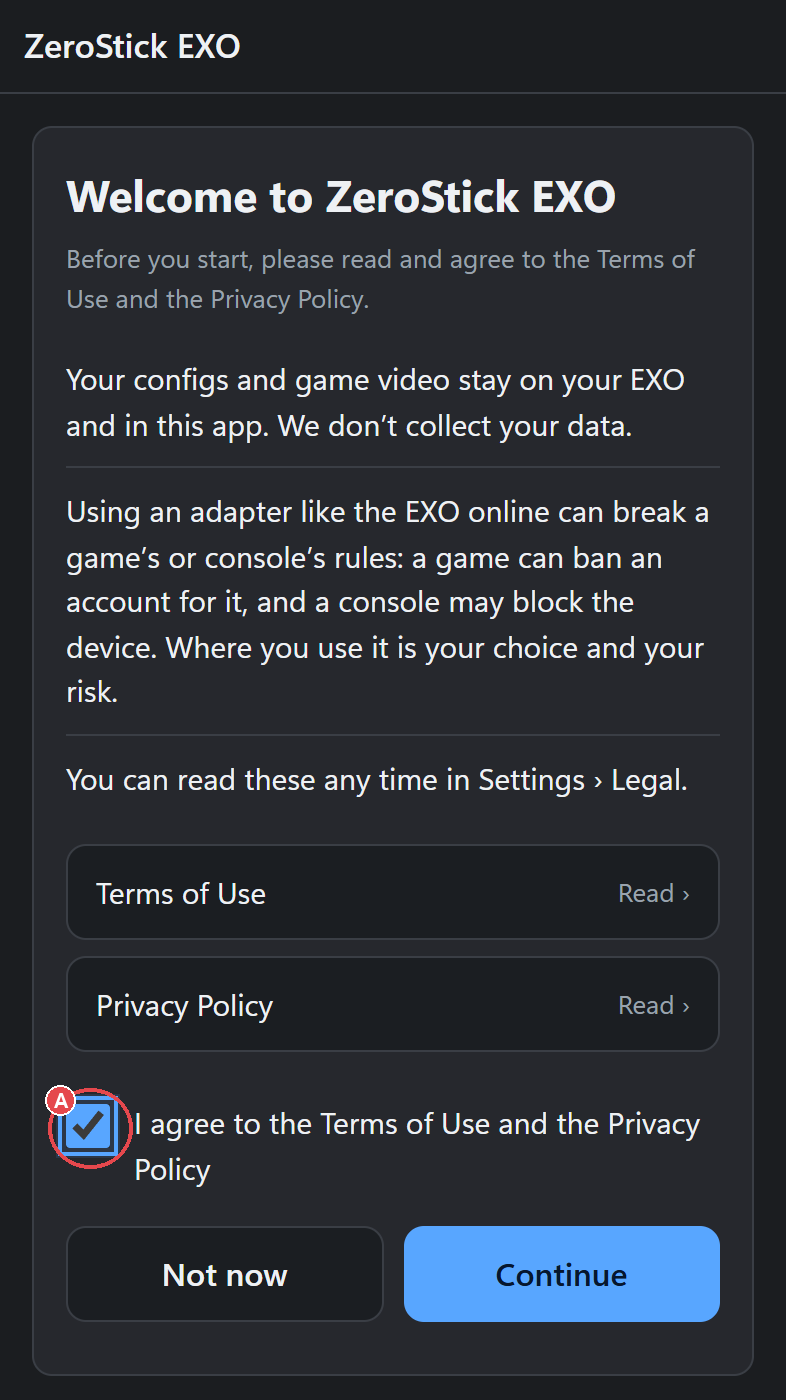
The first time you open the app, it shows the terms. Tick I agree to continue. Credits and support are under the ❤ sheets in Global Settings.