
EXO Gaming on PC
On a Windows PC, the EXO shows up as an Xbox 360 style controller plus a keyboard and mouse. You don't need an auth device.
What you need
- Either version of the EXO.
- A USB-C cable to the PC.
- Your controller, mouse and keyboard.
Setup
- Plug your controller, mouse and keyboard into the front ports A1–A4.
- Connect the EXO's CONSOLE USB-C port to the PC. Leave the AUTH port empty.
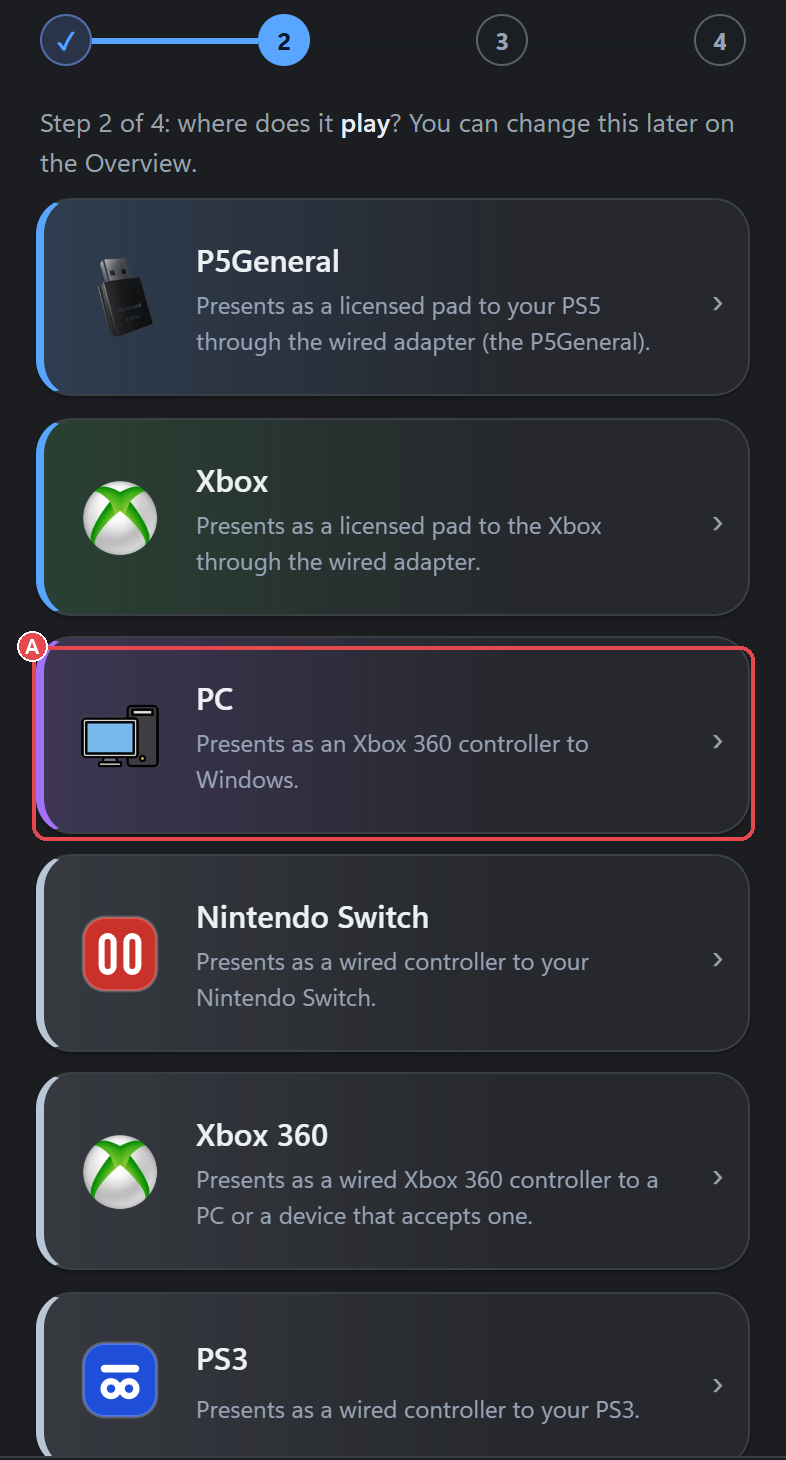
- In the app, set your config's Connection Method to PC. The EXO switches mode by itself in about a second.
- Open your game. It sees a standard XInput controller.
Navigate Mode: use your real mouse and keyboard
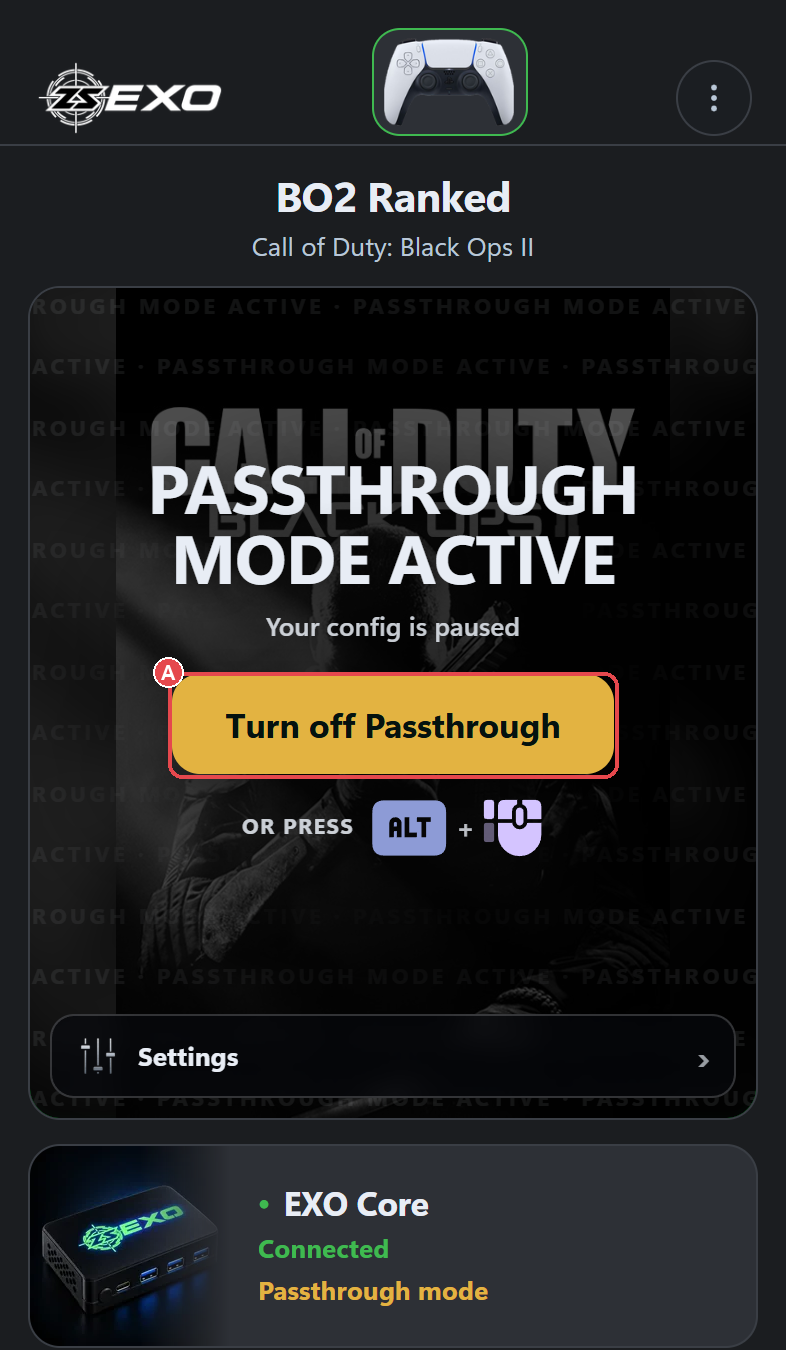
Navigate Mode (Passthrough Mode in the app) hands your real keyboard and mouse straight to the PC, as if they were plugged in directly. Your config is bypassed while it is on. On a PC config the switch is instant.
- Turn it on from HOME, or press the shortcut chord (for example [ + ]). The chord itself is not sent to the PC.
- Set the shortcut under Global Settings > General > Passthrough Mode.
Note If the EXO stops sending, the PC lets go of every key and button and the EXO falls back to controller mode. A frozen EXO never leaves your PC typing.
Configure from the same PC
Connect the EXO's AUX port to the PC as well, and use EXO Studio or the ZeroStick PC app to change settings while you play.
Success check
- Windows lists an Xbox 360 controller in its game controllers settings.
- Your game responds to your controller or mouse.
- Turning on Navigate Mode lets you type and click normally.
Problems? See Troubleshooting.