
EXO Aim Settings
The Aim screen controls how your mouse or controller sticks become aim on the console. This page covers every panel on it, in the order the app shows them, with the range, default and purpose of each setting.
Open a config, then tap Aim in the editor menu. Mouse configs and controller configs show different panels, so this page covers both. Every setting has a purple ? next to it that explains it in the app. For the step-by-step of how mouse movement becomes stick movement, see How translation works.
Hip and ADS
The Aim screen has two pages you swipe between:
- Hip: used when you're not aiming down sights.
- ADS (aim down sights): used while your aim button is held. Most ADS settings start as Same as hip, so you only change what you want to be different.

Mouse configs
Speed
Speed is your mouse sensitivity, from 0 to 100. Higher is faster. Under the number, small print shows the same setting as cm/360: how many centimetres you move the mouse to turn a full circle in game. Lower cm/360 means faster turning. The two are linked by a simple formula: cm/360 = 500 ÷ Speed. Speed 100 is 5 cm per turn, Speed 50 is 10 cm, and Speed 25 is 20 cm.
At 0, Hip reads Standard (the EXO's built-in speed) and ADS reads Same as hip.
| Setting | Range | Default | What it does | When to change it |
|---|---|---|---|---|
| Speed (Hip) | 0–100 (0 = Standard) | 0 | Hip-fire sensitivity, shown as cm/360 | Always. Set it to the turn speed you like |
| Speed (ADS) | 0–100 (0 = Same as hip) | 0 | Sensitivity while aiming down sights | When ADS feels too fast or too slow compared with hip |
Response curve
A curve decides how hand speed turns into aim speed. With a straight line, moving twice as fast turns twice as fast. Bend the curve down at the start and slow, small movements turn very little (good for precise aim), while fast flicks still turn quickly.
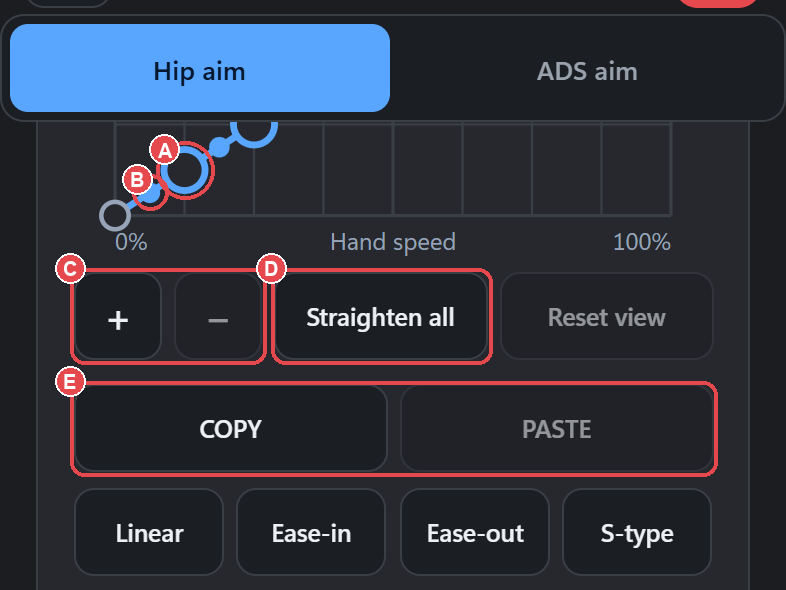
The curve editor shows a grid with handles you drag. A new curve starts with 7 handles, evenly spaced along the bottom. The ends are fixed: zero in gives zero out, and full in gives full out.
- Drag a handle up or down. The curve can only rise from left to right.
- Tap the dot in the middle of a segment to straighten or smooth it.
- + / − add or remove handles (2 to 16).
- Straighten and Reset view undo your shaping or zoom. Pinch to zoom.
- Copy / Paste moves a curve between Hip and ADS, or between configs.
- Presets: Linear, Ease-in, Ease-out, S-type.
A readout shows the x and y of the handle you're touching, as percentages. When you save, the app sends your curve to the EXO as a list of up to 16 points.
| Setting | Range | Default | What it does | When to change it |
|---|---|---|---|---|
| Hip curve | 2–16 handles; presets Linear, Ease-in, Ease-out, S-type | Straight line | Hand speed → turn speed while not aiming | When small adjustments feel twitchy, or flicks feel slow |
| ADS curve | Same as hip, Even, Gentle, Aggressive | Same as hip | Curve while aiming | When you want a different feel scoped in |
Smoothing
Smoothing evens out small jitters in the aim by averaging over a short time. More smoothing feels steadier but heavier, because the aim trails your hand slightly.
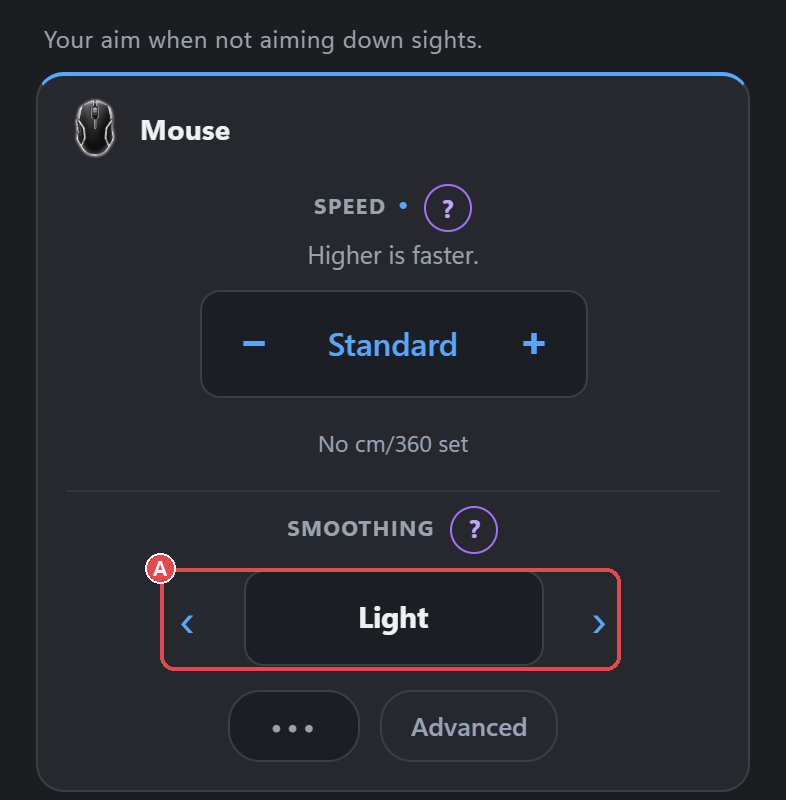
Pick a preset with the ‹ › carousel. Choose Custom to set the numbers yourself, in one of two modes:
- Standard: an adaptive filter that smooths slow movements more than fast ones.
- Classic: XIM APEX-style smoothing with Smooth, Decay and Synch.
| Setting | Range | Default | What it does | When to change it |
|---|---|---|---|---|
| Smoothing preset | Disabled, Light, Balanced, Heavy, Synchronous (Classic), Custom; ADS adds Same as hip | Stored with the config | Picks a ready-made filter | Start here before you try Custom |
| Smoothing mode (Custom) | Standard, Classic | Standard | Adaptive filter, or XIM APEX style | Choose Classic if you're matching XIM APEX numbers |
| Precision (Standard) | 0–100 %, step 0.5 | 0 | Extra smoothing at low hand speed | Raise it if small corrections shake |
| Response (Standard) | 0–100 %, step 0.5 | 10 | How quickly the filter lets go on fast moves | Raise it if flicks feel late |
| Easing (Standard) | 0–100 %, step 0.5 | 35 | Softer start from a standstill | Lower it for a sharper start |
| Smooth (Classic) | 0–100, step 0.5 | 20 | XIM APEX Smooth | Match your XIM value |
| Decay (Classic) | 0–20, step 0.5 | 9 | XIM APEX Decay | Match your XIM value |
| Synch (Classic) | 0–64 ms, step 1 | 8 ms | Evens aim out over this many milliseconds | Match your XIM value |
Fine aim
| Setting | Range | Default | What it does | When to change it |
|---|---|---|---|---|
| Fine aim (Hip) | 0–100 %, step 5 | 0 | Makes small, slow moves count for more | When tiny adjustments don't move the aim enough |
| Fine aim (ADS) | 0–100 %, step 5 | Hip value | Same, while aiming | When you want it only scoped in |
Mechanics: Y scale, invert, quantization
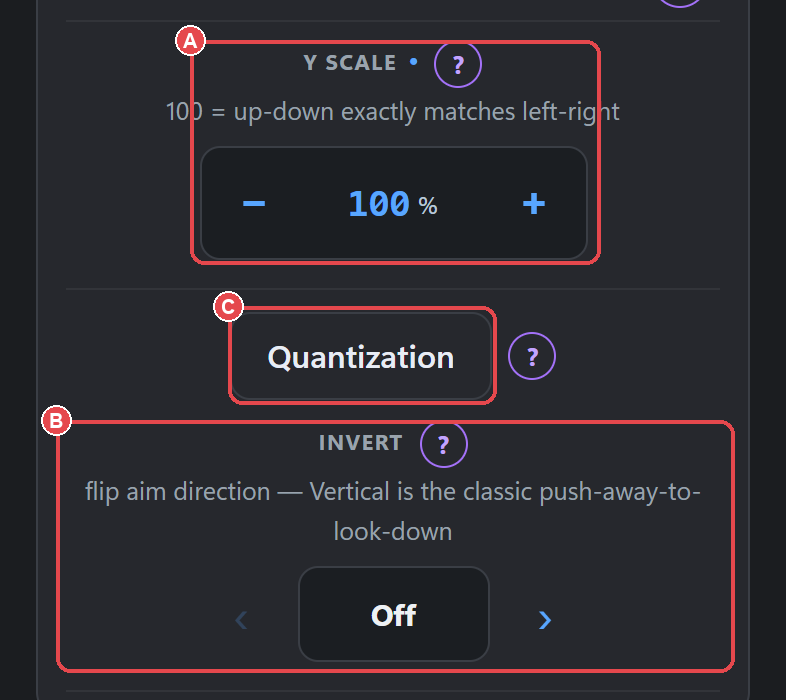
Quantization rounds the aim to fixed steps: either to a set of speeds (Magnitude) or a set of directions (Angle), much like a controller stick reports in steps rather than perfectly smoothly. At 0 it's off.
| Setting | Range | Default | What it does | When to change it |
|---|---|---|---|---|
| Y Scale | 30–200 %, step 5 (clicks at 100) | 100 % | Vertical speed compared with horizontal | When up/down feels faster or slower than left/right |
| Invert | Off, Vertical, Horizontal, Both | Off | Flips mouse axes | If you play inverted |
| Quantization: Magnitude | 0–100 %, step 5 | 0 (off) | Rounds aim speed to steps | For a stepped, stick-like feel |
| Quantization: Angle | 0–100 %, step 5 | 0 (off) | Rounds aim direction to set angles | For a stepped, stick-like feel |
ADS activation (ADS page)
This section starts collapsed. It controls when the ADS settings take over. Your aim button still goes to the console straight away. Only the mouse sensitivity waits.

| Setting | Range | Default | What it does | When to change it |
|---|---|---|---|---|
| Activate | 0–1000 ms, step 4 | 0 | Wait after pressing aim before ADS settings apply | Match it to your game's scope-in time |
| Deactivate | 0–1000 ms, step 4 | 0 | Wait after releasing aim before hip settings return | Match it to your game's scope-out time |
| Smooth ADS Transition | On / off | Off | Blends sensitivity across the wait instead of switching at once | If the switch between hip and ADS feels like a jolt |
Advanced (bottom of the screen)

| Setting | Range | Default | What it does | When to change it |
|---|---|---|---|---|
| Ignore tiny movement | 0–50 counts | 0 | Ignores very small mouse motion, like a noisy sensor or desk vibration | If the aim drifts while your hand is still |
| Feel | Snappy, Balanced, Smooth | Snappy | How quickly the aim stops when your hand stops | Try Balanced or Smooth if stops feel abrupt |
| Start-up feel | 0–200 ms, step 5 | 0 | Eases movement as it starts from rest | If the first frame of movement feels jumpy |
| Mouse DPI line | Shows your DPI | Current DPI | Shows the DPI and opens the DPI picker | When you change your mouse's DPI |
This section also holds the calibration line and Aim Speed Match, which are explained in How translation works.
Mouse DPI and report rate
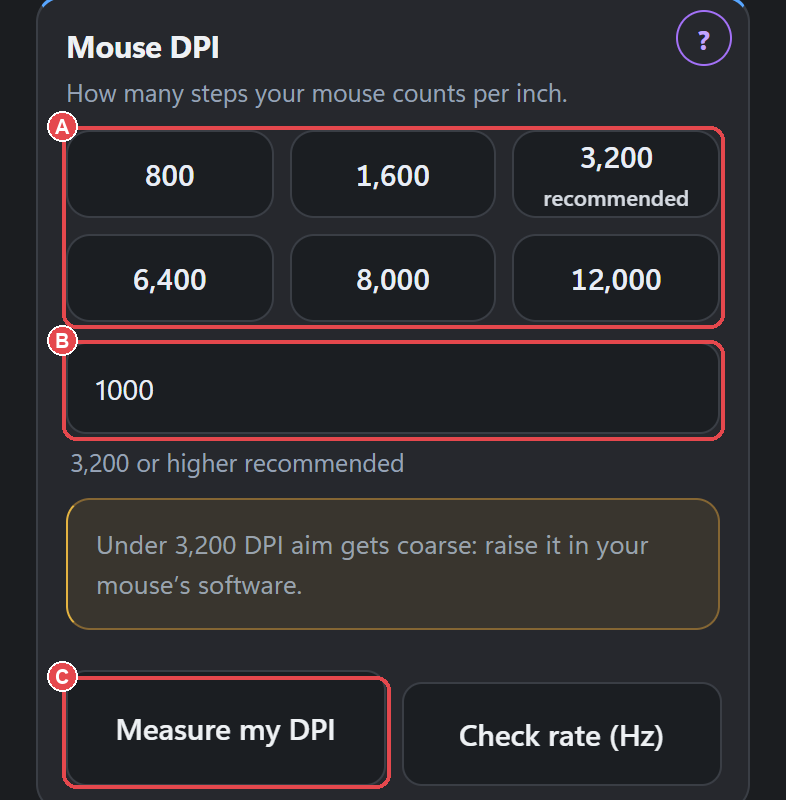
DPI is how many counts your mouse reports for each inch it moves. The EXO converts everything to a 1000-DPI reference, so tell it your real DPI and Speed feels the same at any DPI. You set it on the Device screen or from the DPI line on Aim.
| Setting | Range | Default | What it does | When to change it |
|---|---|---|---|---|
| DPI presets | 800, 1600, 3200 (recommended), 6400, 8000, 12000 | Config value | Tells the EXO your mouse DPI. Warns below 3200 | Whenever you change DPI in your mouse software |
| Or any number | 100–32000, step 50 | Current | Type an exact DPI | If your DPI isn't a preset |
| Measure it instead | Start / Stop / Cancel | — | Works out your DPI as you move the mouse a known distance | If you don't know your DPI |
| Your mouse is set to (rate) | 125, 250, 500, 1000, 2000+ Hz, Not sure | Not sure | Compares your mouse's measured report rate with what you think it's set to | To check your mouse is reporting as often as it should |
| Update rate (Device screen) | 125, 250, 500, 1000 Hz | 250 Hz | How often the EXO sends a fresh report to the console | See Settings reference |
Controller configs
When you play with a controller, the Aim screen shows stick settings instead.
Response curve
Native keeps the game's own stick curve. EXO Linear straightens it so stick position matches turn speed. It needs a game that has been calibrated. Custom lets you draw your own with the same curve editor as mouse configs.
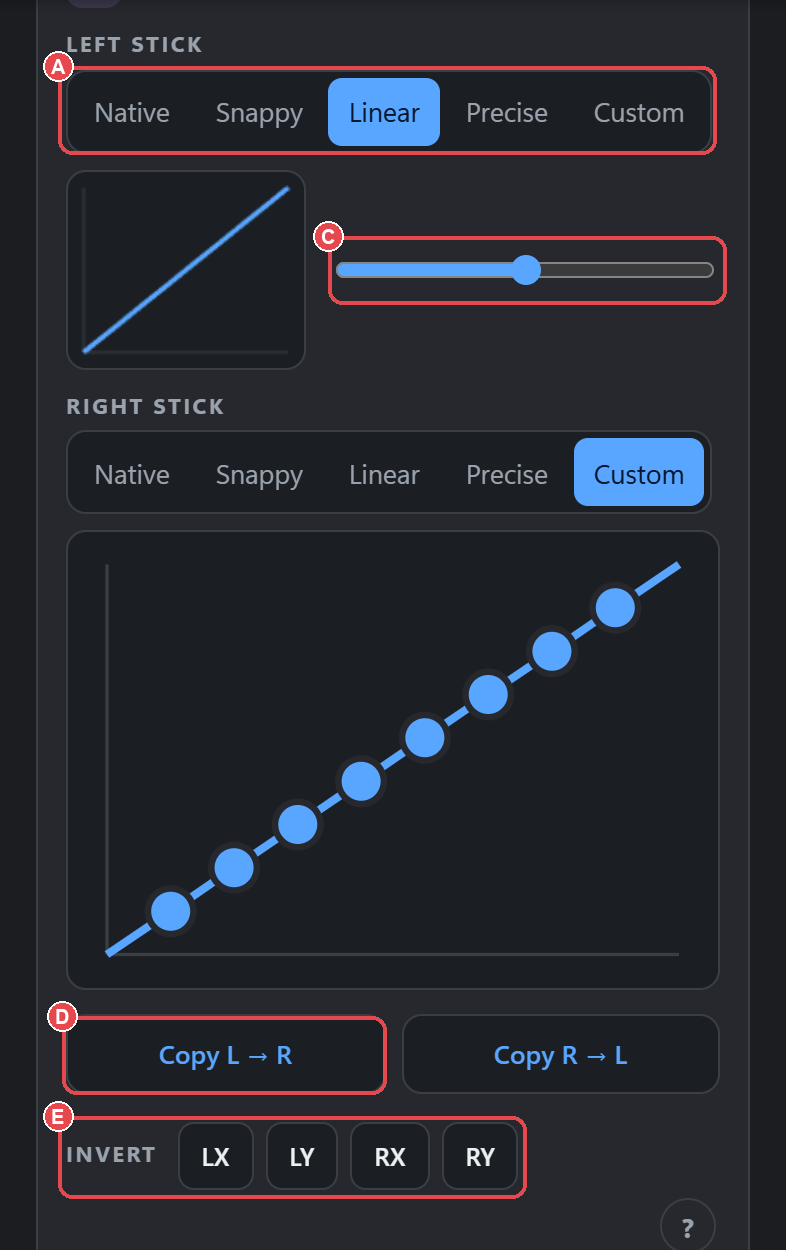
| Setting | Range | Default | What it does | When to change it |
|---|---|---|---|---|
| Curve mode | Native, EXO Linear, Custom | Native | Game's curve, straightened, or your own | When the game's stick feel doesn't suit you |
| Curve preset | Snappy, Linear, Precise, Custom | Linear | Ready-made curve shapes | Quick way to try a feel |
| Curve slider | 0–200 | Follows the curve | Bends the curve: lower is snappier, higher is more precise | Fine-tune a preset |
| Aiming curve (ADS) | Snappy, Linear, Precise, Custom; 0–200 | Hip curve | Separate curve while aiming | When you want a different feel scoped in |
| Copy to the other stick | Button | — | Copies this stick's settings to the other one | To set both sticks the same |
| Invert Left/right, Up/down | On / off each | Off | Flips a stick axis | If you play inverted |
Deadzones
A deadzone is the part of the stick's travel that's ignored. The inner deadzone stops a slightly off-centre stick from drifting. The outer deadzone treats the last part of the push as full. Anti-deadzone does the opposite of the game's own deadzone: it starts your output just past the point the game ignores, so the smallest push moves your aim.
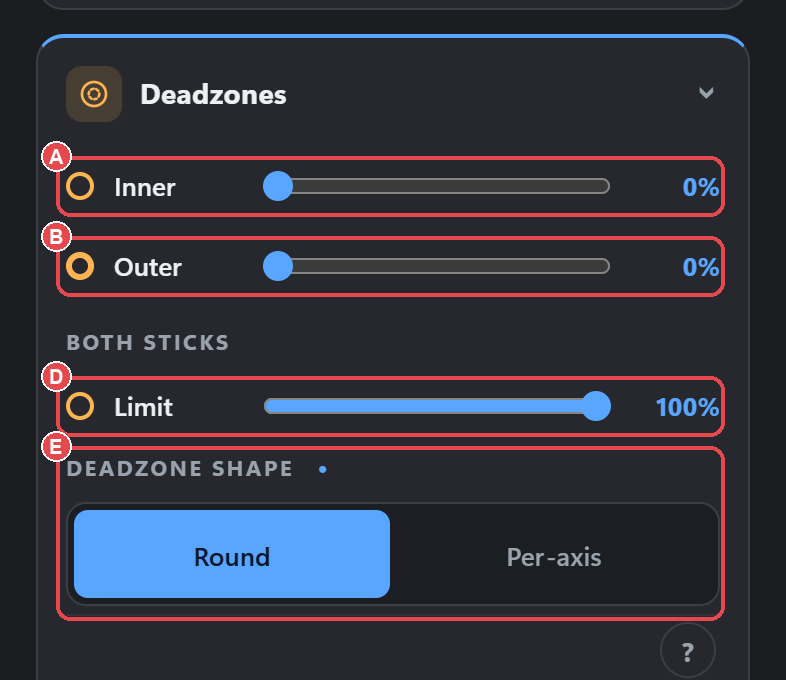
| Setting | Range | Default | What it does | When to change it |
|---|---|---|---|---|
| Inner | 0–40 % | Stored with the config | Ignores small stick movement near centre | Raise it if the aim drifts with the stick released |
| Outer | 0–40 % | Stored with the config | Reaches full output before the stick's edge | If you can't reach full speed |
| Anti | 0–40 % | 0 | Skips past the game's own deadzone | If small pushes don't move your aim in game |
| Limit | 10–100 % | 100 % | Caps the stick's maximum output | To cap your top turn speed |
| Deadzone shape | Round, Per-axis | Round | Round treats all directions alike. Per-axis handles each axis separately | Per-axis if the game uses a square deadzone |
Speed, smoothing and triggers
| Setting | Range | Default | What it does | When to change it |
|---|---|---|---|---|
| Movement speed | 10–100 | 100 | Left-stick speed | To slow movement |
| Sensitivity | 10–100 | 100 | Aim-stick speed | To slow aim |
| Smoothing | Disabled, Light, Balanced, Heavy, Custom | Stored with the config | Steadies the aim stick | If the aim shakes |
| Steadiness (Custom) | 0–95 %, step 5 | 35 % | Custom smoothing strength | Fine control over smoothing |
| Same as hip (ADS) | On / off | On | ADS uses the hip stick settings | Turn off to set ADS separately |
| ADS Sensitivity | 10–100 | Hip value | Aim-stick speed while aiming | When scoped aim is too fast or slow |
| ADS smoothing | Disabled, Light, Balanced, Heavy | Stored with the config | Smoothing while aiming | Steadier scoped aim |
| Hair trigger L2 / R2 | 0–50 % (0 = Off) | Off | The trigger counts as fully pulled once it passes this point | For faster shots in games that need a full pull |
| Trigger limit | 10–100 % | 100 % | Caps trigger output | If a game reacts badly to full trigger |
Behavior simulation
The Translation screen holds Behavior simulation, which adds controlled variation to key-driven stick moves, triggers and script steps. All of these are 0 (off) by default. When a setting is on, the EXO varies that output by a random amount, up to the limit you set. See How translation works for the full table, and Script timing for timing variation in scripts.
Starting values
These are reasonable values to start from for a mouse config. Tune from here.
| Setting | Start at | Why |
|---|---|---|
| Mouse DPI | 3200 (the app's recommendation), entered to match your mouse | Fine detail; the app warns below 3200 |
| Update rate | 250 Hz (default) | The default |
| Speed (Hip) | Your usual cm/360 converted (500 ÷ cm/360), or use Aim Speed Match | Keeps your muscle memory |
| Speed (ADS) | 0 (Same as hip) | Change only once hip feels right |
| Curve | Straight line (default) | Easiest to judge; bend it later |
| Smoothing | Disabled or Light | Least lag |
| Y Scale | 100 % | Even speed both ways |
| Feel | Snappy (default) | Quickest stops |
| Quantization, Fine aim, Start-up feel | 0 (off) | Add only if you need them |
| ADS Activate / Deactivate | 0 | Set to your game's scope time if needed |