
EXO Studio
EXO Studio is the free Windows app for your ZeroStick EXO. It runs Screen Assist game packs on your PC, gives you the full Zen/Titan-style GPC script tools, and includes the whole ZeroStick phone app on its My EXO page, so you can do everything from one window.
What EXO Studio is and when you need it
EXO Studio is a Windows desktop app that talks to your EXO over a USB cable. It is free: there is no subscription and you don't need an account.
You need EXO Studio when you want to:
- Use Screen Assist. The game packs (CoD aim assist, Apex aim assist and NBA 2K26 auto-green) run on your PC inside EXO Studio. The phone app does not run these packs.
- Run Titan Two-style computer-vision (CV) packs. A CV pack is a Python script plus a GPC partner script. EXO Studio runs them unchanged.
- Write, compile and test GPC scripts with a full editor, Zen Studio-style keys, a data viewer and device controls.
- Watch your controller live on the Monitor page and see exactly what the console receives.
For everyday setup (mappings, aim settings, Smart Actions, configs) the phone app is enough. EXO Studio includes that same app on its My EXO page, so you can use either one. Changes you make in one show up in the other.
System requirements and install
| Item | What you need |
|---|---|
| Computer | A Windows PC |
| Cable | A USB-C data cable from the EXO to the PC |
| Game picture | Comes from the EXO over the same USB cable. You don't need a separate capture card on the PC. |
| Account | None |
Install EXO Studio
- Download the installer,
EXO-Studio-Setup-<version>.exe, from zerostickgaming.com. - Run it. EXO Studio installs for your Windows user only.
- Open EXO Studio from the Start menu.
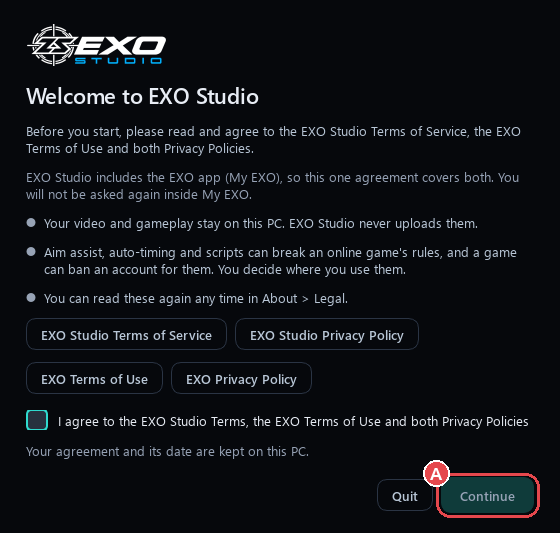
- The first time you open it, a "before you start" window shows the Terms and Privacy information. Read it and click through to continue.
Updating or uninstalling keeps your settings and recordings.
Connecting to your EXO
- Plug a USB-C data cable into the EXO's USB-C port marked AUX. If your EXO has no AUX port, use its USB-C data port.
- Plug the other end into your PC.
- Open EXO Studio. The first-run screen lists the ports it finds. It only connects when you press the connect button.
- Select your EXO and connect. In Advanced view you can also connect or reconnect from the Device panel.
Close other apps that hold the port
Only one program can use the EXO's USB port at a time. If another program has it open, EXO Studio can't connect, and it tells you in plain words that another program is holding the port. Close any other app that might be using it, such as a serial monitor, a second copy of EXO Studio or a firmware tool. Then connect again.
A tour of EXO Studio
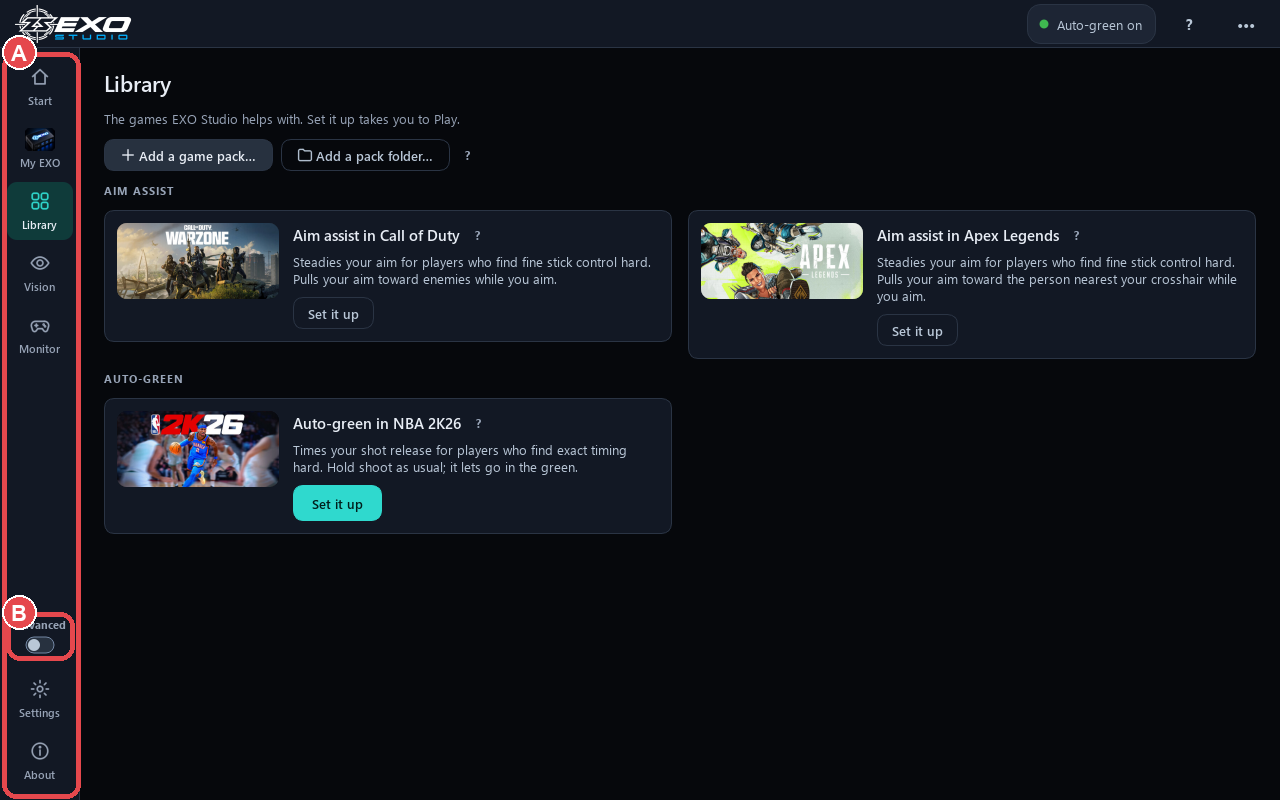
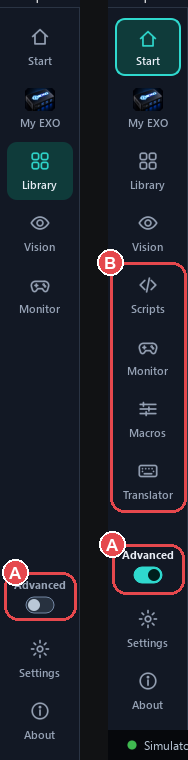
The pages are listed down the left side of the window (the rail). In Normal view you see Play, My EXO, Library, Vision, Monitor, Settings and About. Advanced view adds Start, Scripts, Macros and Translator, plus the Zen/Titan tool panels. For the phone app's screens, see the app tour.
Play
Play is the home page in Normal view. It is a three-step checklist that ticks itself off as you go:
- Plug in the EXO. Ticks when the EXO answers.
- Pick a game pack. EXO Studio then switches the EXO into EXO Studio mode for you, picks the EXO's built-in capture as the picture source, and starts the pack.
- Play. Press Stop when you want to end the pack.
Turn the pack on or off with the big switch or F5. To change game, pick a different pack. If a running GPC script draws on a screen, Play also shows its 128x64 display.
| Setting | Choices | What it does |
|---|---|---|
| On/off switch (F5) | On / Off | Starts or stops the pack |
| Strength | Gentle / Normal (default) / Strong | How hard the pack helps |
| Fine-tune: Aim at | Head / Chest / Body | Where aim packs aim |
| Fine-tune: Helps when | While I aim (default) / Aim or fire / Always | When aim packs are allowed to help |

Start (Advanced view)
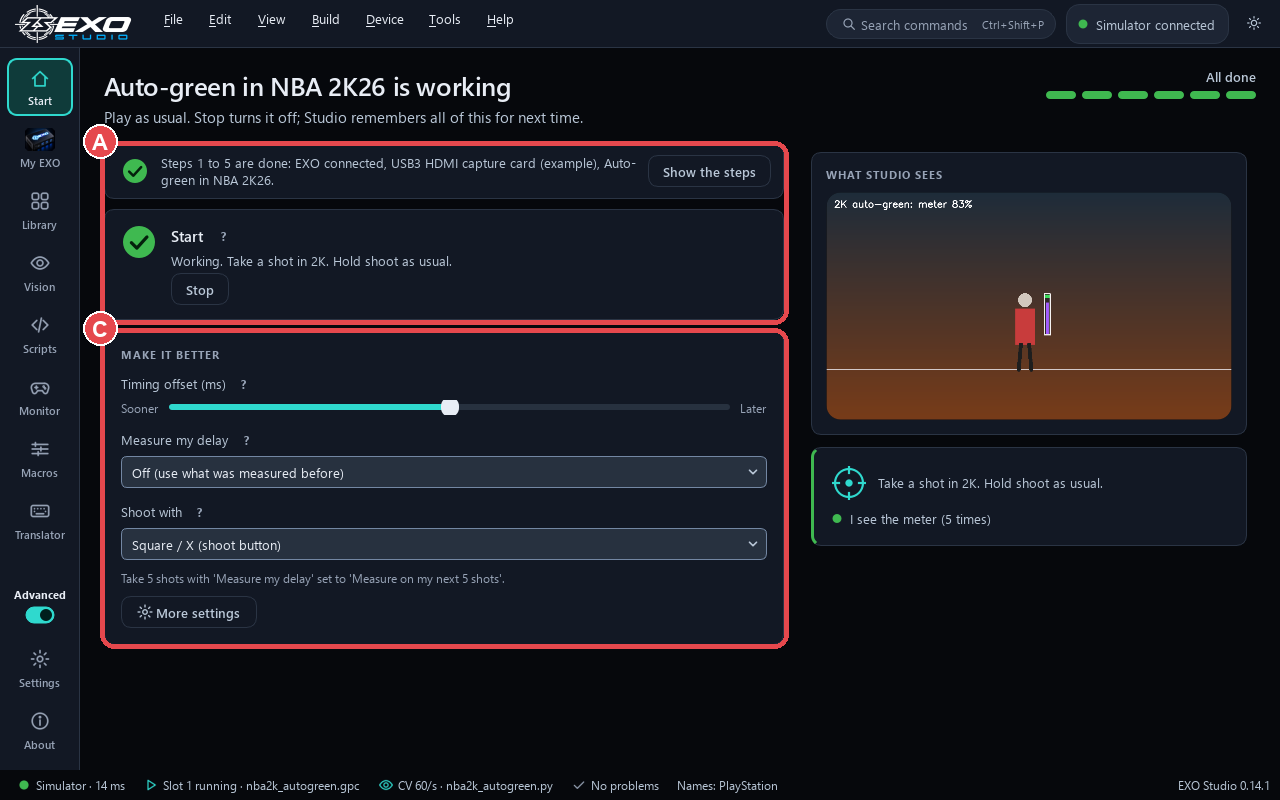
Start is the Advanced view's version of Play. It walks you through six steps for one game, and five of them tick themselves:
- Plug in the EXO.
- Game video (a real picture arrives).
- Pick the game.
- Turn on EXO Studio mode.
- Set this in your game. This is the one step you do yourself: set the in-game option the pack asks for.
- Start.
Under the steps, Make it better holds the pack's own settings.
| Make it better setting | What it does |
|---|---|
| Timing offset | Moves the pack's timing earlier or later (NBA 2K auto-green) |
| Measure my delay | Learns your capture and TV delay over 5 shots and sets the timing for you |
| Strength | How hard the pack helps |
| Smoothing | How gently the pack's movement is blended in |
| Aim at | Head, Chest or Body for aim packs |
Library
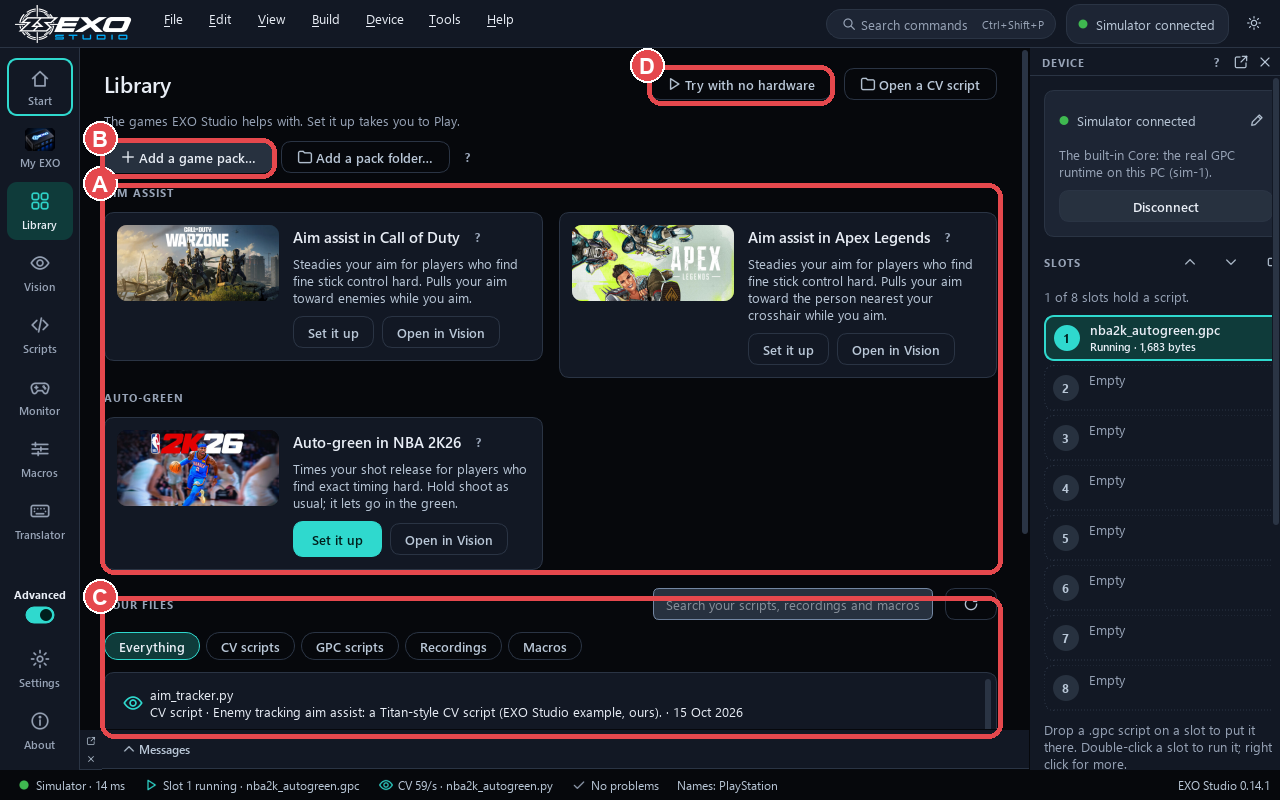
Library holds your game packs.
- Built-in packs: CoD aim assist, Apex aim assist and NBA 2K26 auto-green.
-
Add a game pack / Add a pack folder: brings in a Titan Two CV pack (a
.pyand.gpcpair, as a folder or a.zip). It appears under Your packs, and you start it from Play. Its settings show as plain controls. - Try with no hardware: opens the built-in simulator with a practice shot meter, so you can learn how a pack behaves before you plug anything in.
The first time a CV script from an unknown source tries to run, EXO Studio asks you to choose Always trust or Run once. Only trust packs from people you trust.
Vision
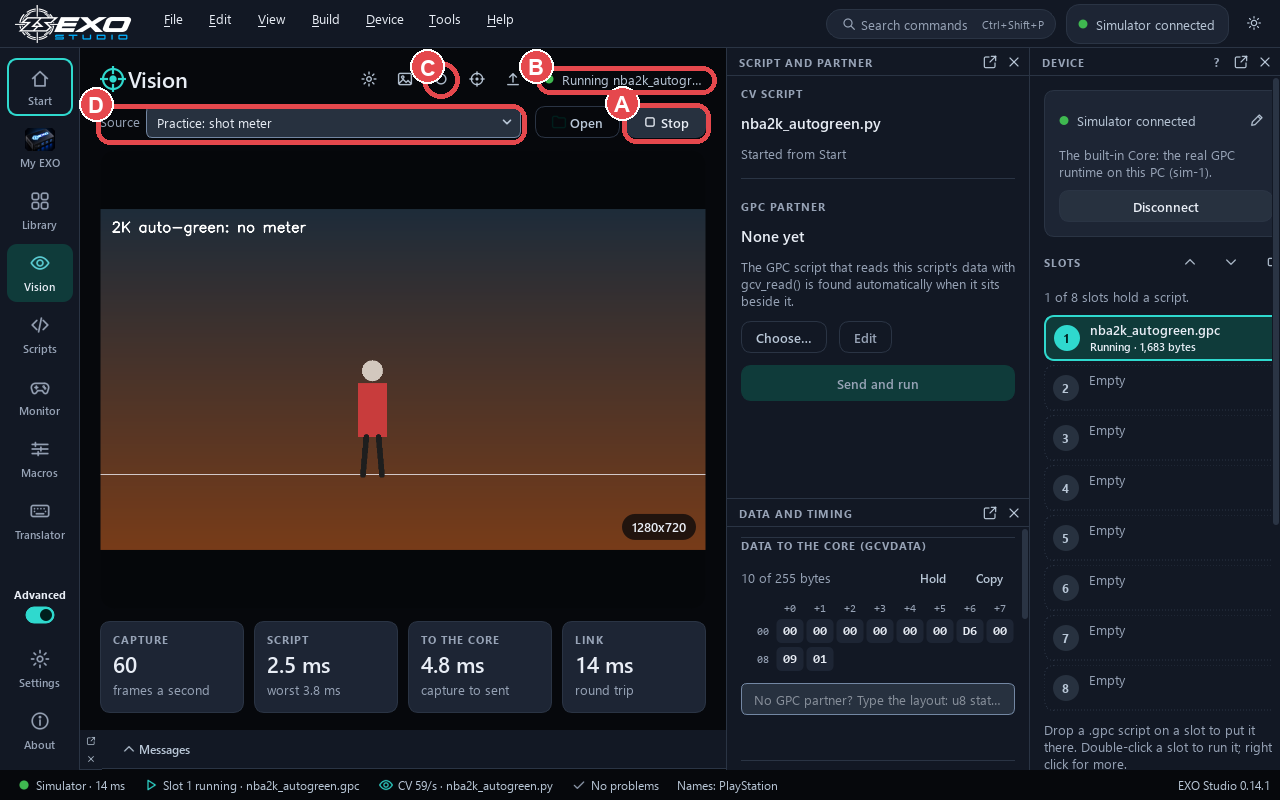
Vision shows the game picture the pack is looking at, with one Start button and a plain status line. Use it to check that the picture is arriving and the pack is running.
In Advanced view, Vision adds:
| Tool | What it does |
|---|---|
| Capture settings | Shows the format and size the capture agreed to, and the real frames per second |
| Record (Ctrl+R) | Records the game picture to a clip |
| Replay a clip | Feeds a recorded clip to a script instead of live video. Play, pause, and step frame by frame with , and .
|
| Vision: script and partner panel | Shows the CV script, its GPC partner, and whether the partner compiles |
| Vision: data and timing panel | Shows the data the CV script sends, decoded the way the GPC script reads it, and the time each frame takes |
Monitor
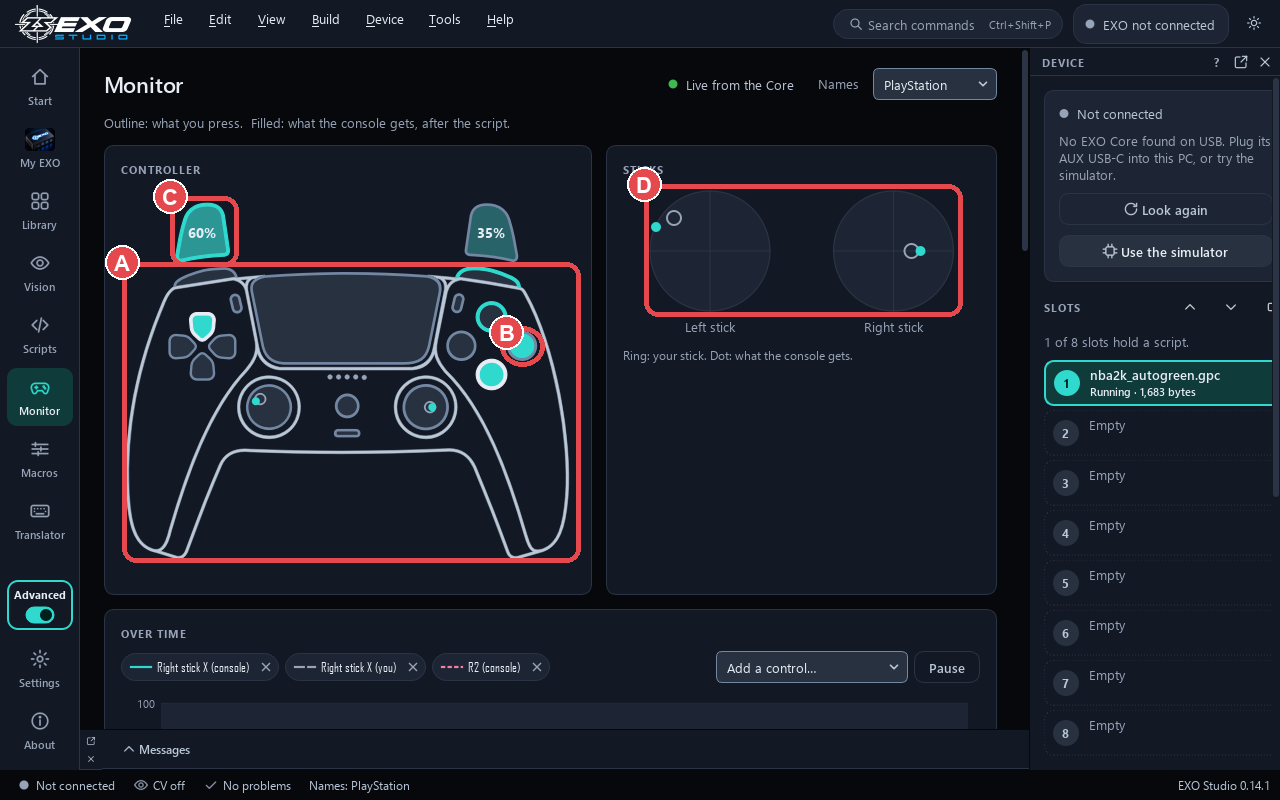
Monitor draws a DualSense controller on screen. The outline shows what you are pressing. The filled shape shows what the console actually receives. Triggers and sticks move live, so you can see at a glance whether a mapping, script or pack is changing your input.
In Advanced view, Monitor adds:
| Tool | What it does |
|---|---|
| Per-control bars and plots | Exact values for every button, trigger and stick axis over time |
| LEDs and rumble | What the console sends back to the controller |
| Script cost | How much of each tick the running script uses |
| Ports and cables | What is plugged into the EXO |
| Remote slot change | Change script slot from the controller (home + Share, or home + L3) |
| Tournament mode | Turns off scripts and keeps your button layout |
| Menu feedback | Controller feedback when you change settings from the controller |
| VM speed | How often GPC scripts run, 1 to 40 ms |
| Simulator card | When using the simulator: script variables (PVARs), battery, haptics and ADS |
My EXO
My EXO (Ctrl+E) is the whole ZeroStick phone app inside EXO Studio. It talks to the EXO over EXO Studio's USB connection and works exactly like the phone app:
- HOME and your configs
- Mappings (button remaps)
- Scripts (Smart Actions such as turbo, combos and anti-recoil)
- Aim (mouse and stick aim settings)
- Devices
- AI Scripts (the EXO's own on-device screen reading, such as the Gun reader)
- Global Settings
Changes you make here stay in step with the phone app. For every setting, see the settings reference, aim settings, Scripts and AI Scripts.
Scripts (Advanced view)
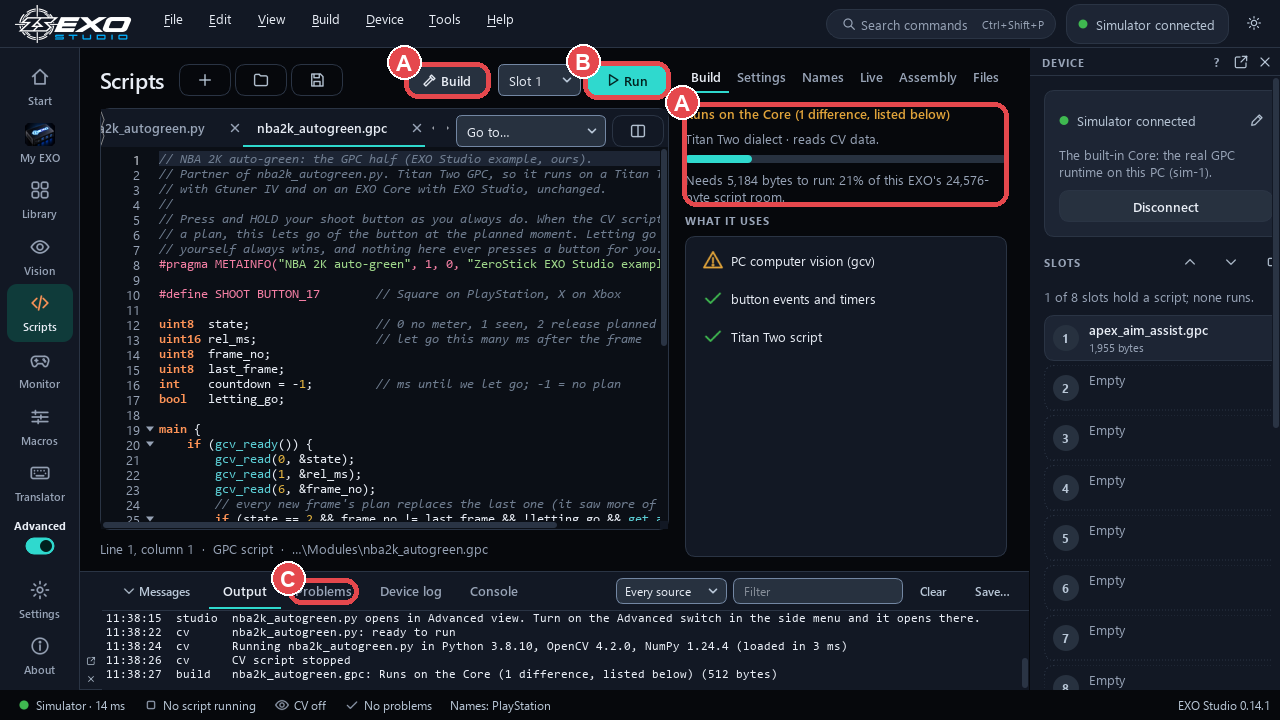
Scripts is the GPC and Titan script editor.
| Tool or key | What it does |
|---|---|
| New script | Starts a new GPC script or CV script |
| Compile | Checks the script and gives a plain verdict, with problems listed in the Problems panel |
| F5 | Runs the script in a test slot on the EXO. Stop removes it again. |
| F6 | Cleans up the code layout (as in Zen Studio) |
| F3 | Opens Device Monitor (as in Zen Studio) |
| F1 | Finds a control name |
| Projects | Opens .exoproj and .gpj projects |
| Find in all files | Searches every file in the project |
| Data viewer | Shows TRACE_1 to TRACE_6, plots up to 4 values, and saves the plot as a PNG |
| Autosave and crash recovery | Saves your work as you go and recovers it if EXO Studio closes unexpectedly |
Compiled Cronus .bin and .gbc files can't be opened. Use the script's .gpc source. See Scripts for the script language.
Macros (Advanced view)
Record controller input as a macro, edit it, and play it back with the Play the macro window.
Translator (Advanced view)
The Input Translator turns keyboard and mouse into controller input. Play with a PC controller (F4) feeds a PC controller or keyboard and mouse to the EXO. Esc or Stop releases everything at once, and the PC input lets go 100 ms after its last update. When you move a stick on your own controller, your stick wins over the PC input.
Settings
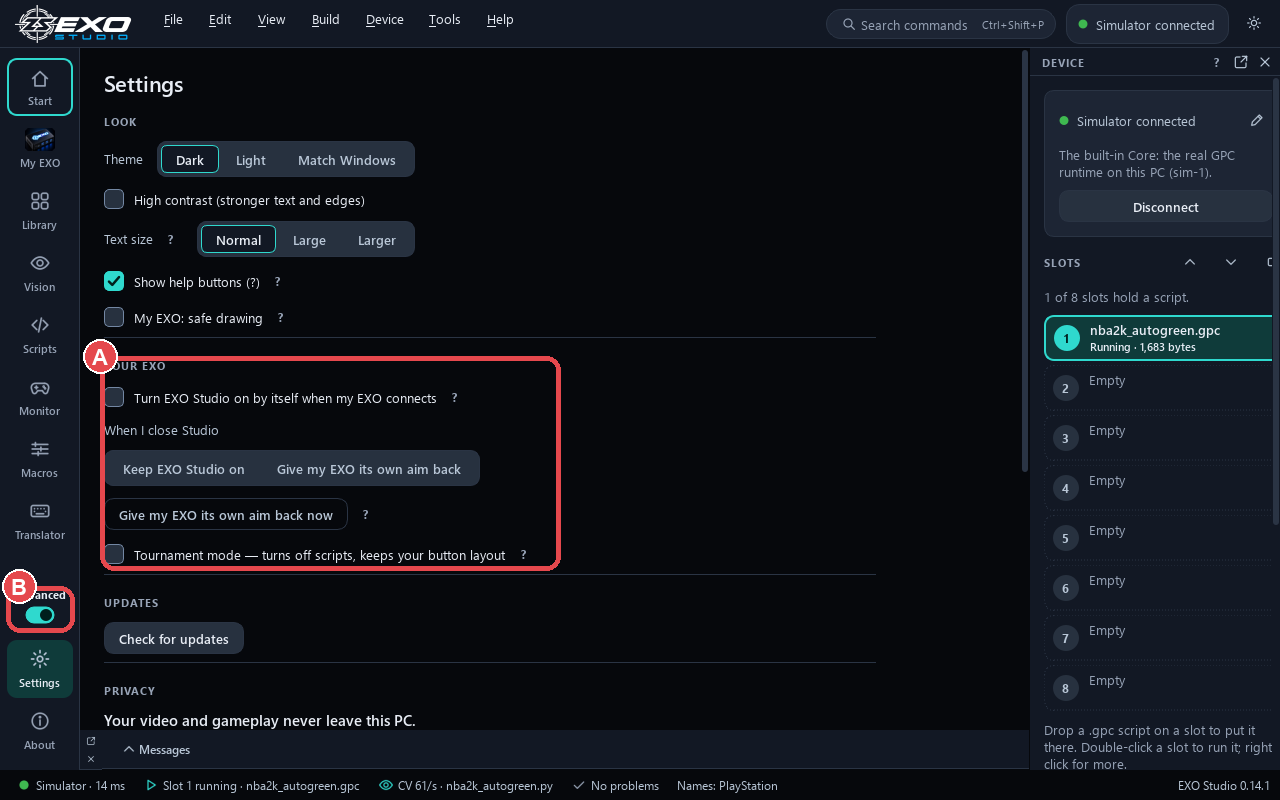
| Section | What it holds |
|---|---|
| Your EXO | Device options, including Tournament mode ("turns off scripts, keeps your button layout") |
| Models | The detection models game packs use |
| CV Python packages | Extra Python packages a CV pack needs |
| Control names | How buttons are named |
| Languages and themes | The app's language and look |
| Preferences | General app preferences |
| Advanced > Advanced view | Turns Advanced view on or off |
| Device (Advanced view) | More device options |
About
About shows your EXO Studio version and the legal information.
Panels, windows and shortcuts
| Item | What it does |
|---|---|
| Output and problems panel | Bottom panel with the EXO's log and problems as plain cards. In Advanced view it adds a Console where you can type requests such as GET /status. |
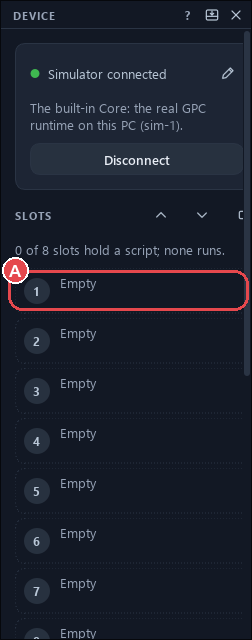
| Device panel (Advanced) | Connect or reconnect, slot cards (drop a .gpc file onto a slot, right-click for more), Restart the EXO, and Device details |
| Every command (Ctrl+Shift+P) | Search for any command by name |
| Keyboard shortcuts (Ctrl+/) | Lists every key |
| Help ("?") | Help for the screen you are on |
| Wired controllers on each console | Steps to set a PS5, PS4, Xbox or Switch to use a wired controller |
Normal view and Advanced view
EXO Studio starts in Normal view, which keeps things simple: Play, My EXO, Library, Vision, Monitor, Settings and About.
Advanced view adds Start, Scripts, Macros and Translator, plus the Zen/Titan tools: the script editor, script slots on the Device panel, the Zen Studio keys, the data viewer, the Vision panels, the Console and the Monitor device controls.
To switch, use the Advanced view switch above Settings on the rail, or go to Settings > Advanced > Advanced view.
The three EXO modes
Your EXO has three modes. The mode applies to the whole device and starts as Normal.
| Mode | What runs | Where the game picture goes |
|---|---|---|
| Normal | Everything EXO, including the EXO's own AI Scripts | Stays on the EXO |
| GPC mode | Works like a Cronus Zen: the aim engine stays on and Zen scripts run on top. AI Scripts are off. | Capture is parked |
| EXO Studio mode | Works like a Titan Two: computer vision runs on your PC in EXO Studio, and the pack's GPC partner script on the EXO reads the results | Goes to the PC |
In EXO Studio mode the EXO's own AI Scripts switch off, because the PC now has the picture. You don't normally set this yourself: when you pick a game pack, EXO Studio turns EXO Studio mode on for you.
How safety works with game packs
Packs run with the same full output range a Titan Two script has. These are the controls that limit them:
- The pack's own settings: Strength, Smoothing and the pack's pull limit. Aim packs help only while you aim by default, because they can't tell teammates from enemies.
- Your config's stick and trigger caps and any buttons you've disabled still apply after every script.
- The kill switch stops the EXO sending any input, instantly.
- Tournament mode turns off scripts, AI and CV packs, recoil, turbo and added moves, and keeps your remaps and aim settings.
- Nothing runs during calibration, during the Recoil Workshop, or in Navigate Mode.
- NBA 2K auto-green: if you let go of Shoot yourself, your release always counts.
Walkthrough: set up a game pack
- Connect the EXO's AUX port to your PC and open EXO Studio.
- Make sure the EXO is connected to your console as usual (see Quick start).
- On Play, wait for step 1 to tick.
- Pick a game pack: CoD aim assist, Apex aim assist or NBA 2K26 auto-green. EXO Studio turns on EXO Studio mode, picks the EXO's capture and starts the pack.
- Open Vision and check that you can see the game picture.
- Back on Play, choose a Strength. Start with Normal.
- For aim packs, open Fine-tune and pick Aim at and Helps when.
- Play. Use the switch or F5 to turn the pack off and on, and Stop to end it.
Walkthrough: tune a pack with Make it better
- Turn on Advanced view and open Start.
- Check that all six steps are ticked, including "Set this in your game".
- Open Make it better.
- Aim packs: if the help feels too strong or jumpy, lower Strength or raise Smoothing. If it feels weak, do the opposite. Change Aim at to suit the game.
- NBA 2K auto-green: press Measure my delay and take 5 shots so EXO Studio learns your capture and TV delay. If shots are still early or late, press Was early or Was late. Each press moves the timing by 5 ms.
- Change one setting at a time, and play a few rounds before you change the next one.
Walkthrough: run a GPC script in Advanced view
- Turn on Advanced view and open Scripts.
- Open your
.gpcfile, or choose New script and write or paste one. - Press Compile. If the verdict shows problems, use the cards in the Problems panel to find each line, fix it and compile again.
- Press F5 to run it in a test slot on the EXO.
- Press F3 or open Monitor to watch what the script sends to the console. Use the data viewer to plot TRACE values.
- Press Stop. The test slot is cleared.
- To keep the script on the EXO, drop the
.gpcfile onto a slot card in the Device panel.
Walkthrough: edit a config in My EXO
- Open My EXO (Ctrl+E).
- On HOME, pick the config you want to change, or make a new one.
- Open Mappings to change buttons, Aim to change aim and stick settings, or Scripts to add Smart Actions.
- Make your changes. They save to the EXO over the USB link and also show in the phone app.
- Open Monitor and press buttons to check the result.
Walkthrough: check your controller with Monitor
- Open Monitor.
- Press each button and pull each trigger. The outline (your input) should light up for each one.
- Move each stick in a full circle. Check that it reaches the edge and comes back to the centre.
- Compare the outline with the filled shape. If they differ, a mapping, script or pack is changing that input. That's expected when you set one up, and a clue when you didn't.
- In Advanced view, use the per-control bars and plots to see exact values.
Troubleshooting
| Problem | What to do |
|---|---|
| EXO Studio says another program is holding the port | Close other apps that use the port (serial monitors, a second copy of EXO Studio, firmware tools), then connect again. |
| "Access is denied" on the port, with nothing else open | Unplug the EXO's USB cable, plug it back in and connect again. |
| The EXO isn't listed | Use the AUX port (or the USB-C data port) and a data cable, not a charge-only cable. Try another USB port on the PC. |
| Play is stuck on "Plug in the EXO" | Check the cable, then press connect on the first-run screen or in the Device panel. |
| No picture on Vision | Check the EXO's video connection. In Advanced view, open Capture settings to see the format and real frames per second. |
| Aim pack pulls toward teammates | Set Helps when to "While I aim" (the default). |
| Aim pack feels too strong or jumpy | Lower Strength or raise Smoothing. |
| NBA 2K shots always early or late | Run Measure my delay, then use Was early / Was late. |
| A pack from someone else won't start | Answer the trust question with Run once or Always trust. If it still stops, the pack may need its own files or Python packages; add packages under Settings > CV Python packages. |
| A script won't compile | Read the cards in the Problems panel. Cronus .bin/.gbc files can't be opened; use the .gpc source. |
| Scripts and packs do nothing | Check that Tournament mode is off, and that you aren't in calibration, the Recoil Workshop or Navigate Mode. |
| The updater is stuck on "downloading" | Windows Defender may be locking the download. Wait for the scan to finish, or download the installer again. |
For more help, see Troubleshooting, or go back to the manual home.