
EXO Passthrough Mode
Passthrough Mode hands your controller, keyboard and mouse straight through the EXO, untouched. Use it to get around console menus, the PC desktop or a game's settings, then switch it off to get your config back.
What it is
Normally the EXO runs everything you plug in through your config: your aim curve, mappings, scripts and Smart Actions. That's what you want in a match, but not when you're typing a Wi-Fi password or clicking through menus.
Passthrough Mode switches all of that off for a moment. Your inputs go to the console or PC as they are:
- On a PC with a keyboard and mouse, the EXO presents your real keyboard and mouse, as if they were plugged straight into the PC. You can type and click normally.
- On a console, your controller drives the menus directly, with no config in the way.
- Your config is bypassed, not changed. Nothing is lost. Turn Passthrough off and you're back to exactly where you were.
You may see it called Navigate in a few places. It's the same mode.
When to use it
| Situation | Why Passthrough helps |
|---|---|
| Typing in a menu, chat or password box | Your keys type letters instead of acting as game buttons. |
| Using the PC desktop or a launcher | Your mouse moves the cursor normally instead of turning into stick movement. |
| Changing in-game settings | Menus respond to your real inputs, with no scripts firing. |
| Checking something is wrong with a config | If things work in Passthrough but not in your config, the config is the cause. |
Turn it on
- Open the ZeroStick app and go to HOME.
- Tap Passthrough Mode.
- A yellow Passthrough Mode Active banner appears on HOME. While it's showing, your inputs go straight through.
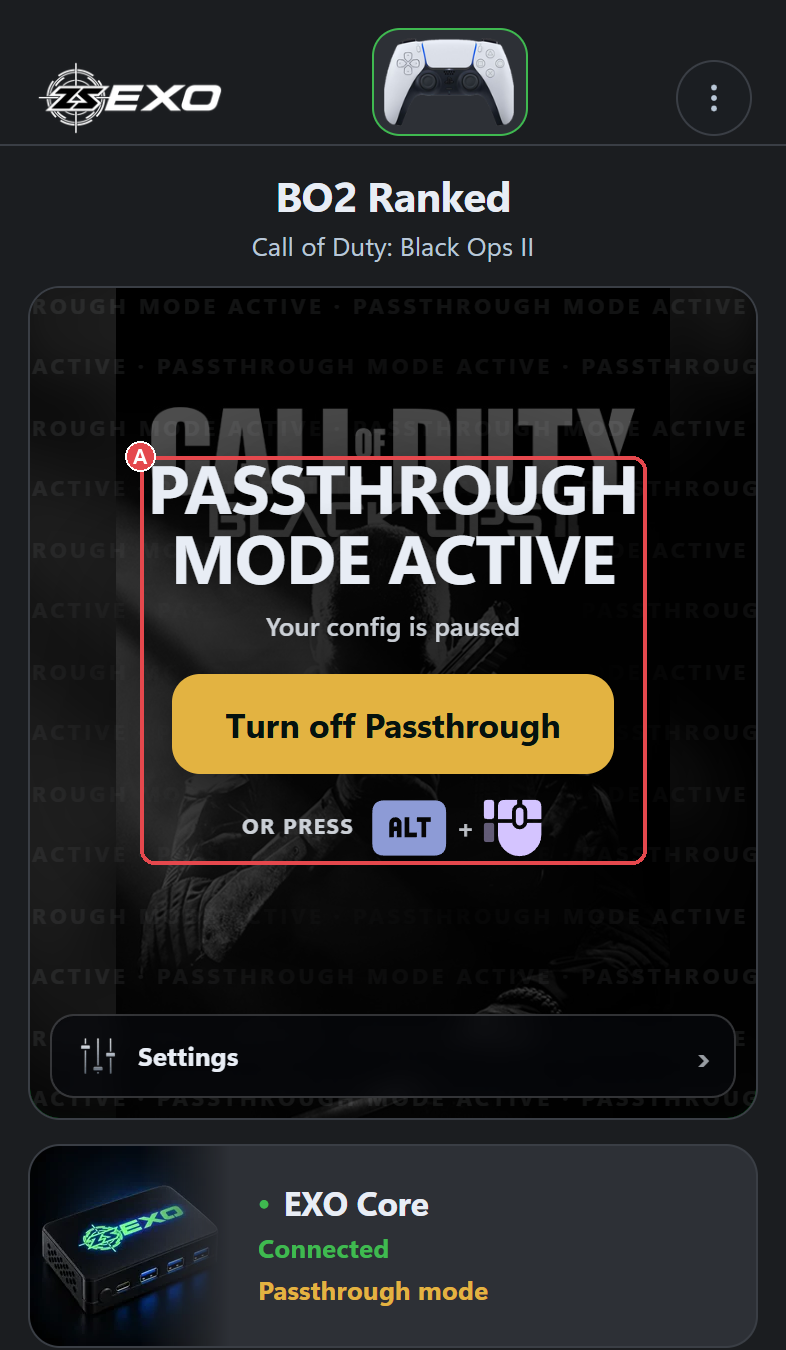
You can also turn it on from Global Settings → General → Passthrough Mode.
Shortcuts
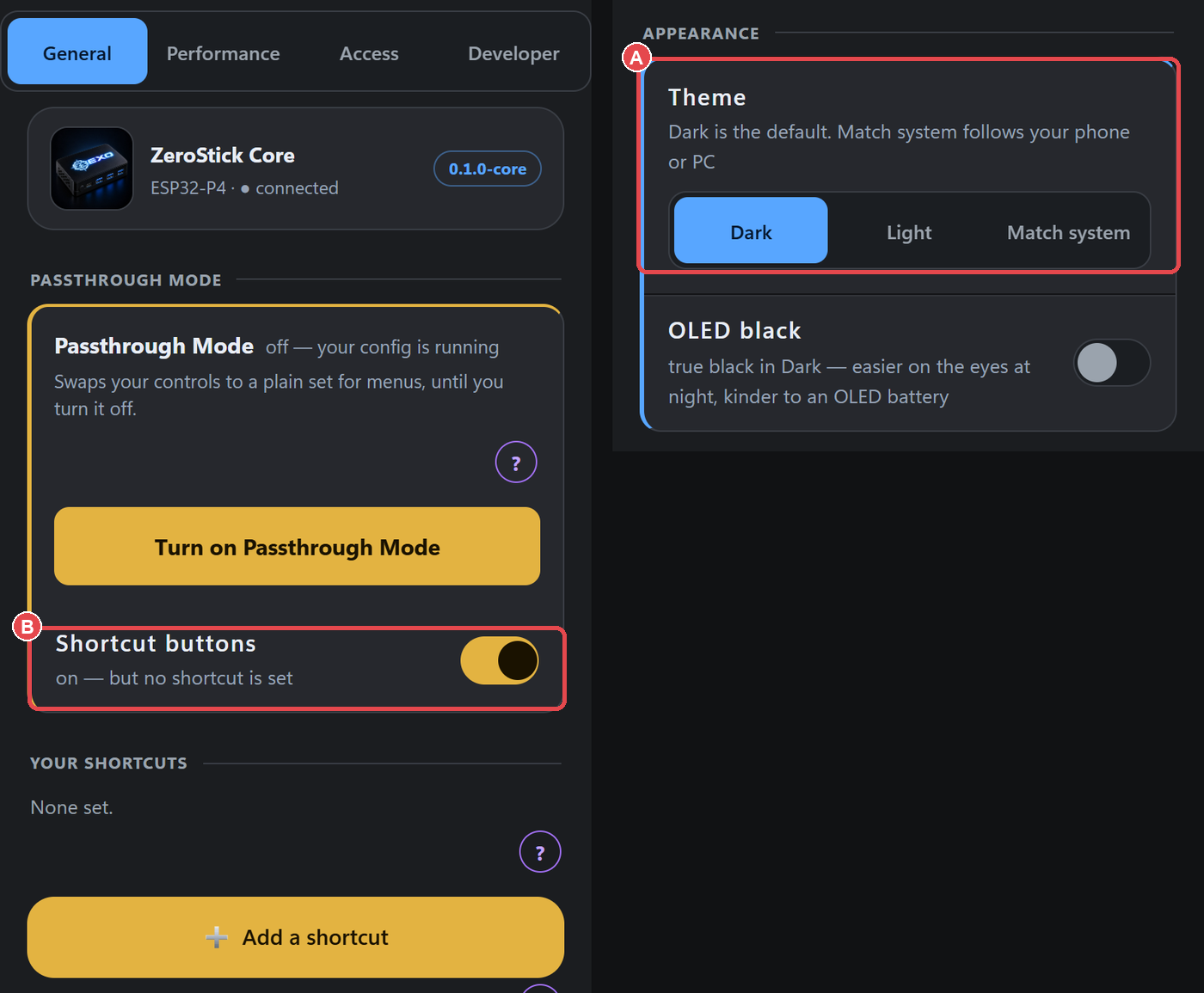
You don't have to open the app every time. A shortcut is a pair of inputs you press together to switch Passthrough on or off, for example a keyboard key plus a mouse side button.
- Go to Global Settings → General.
- Switch Shortcut buttons on.
- Under Your shortcuts, tap Add a shortcut and press the two inputs you want. They must be two different inputs.
- To remove one, tap it and remove it. Restore defaults brings back the built-in shortcuts.
Turn it off
Any of these returns you to your config:
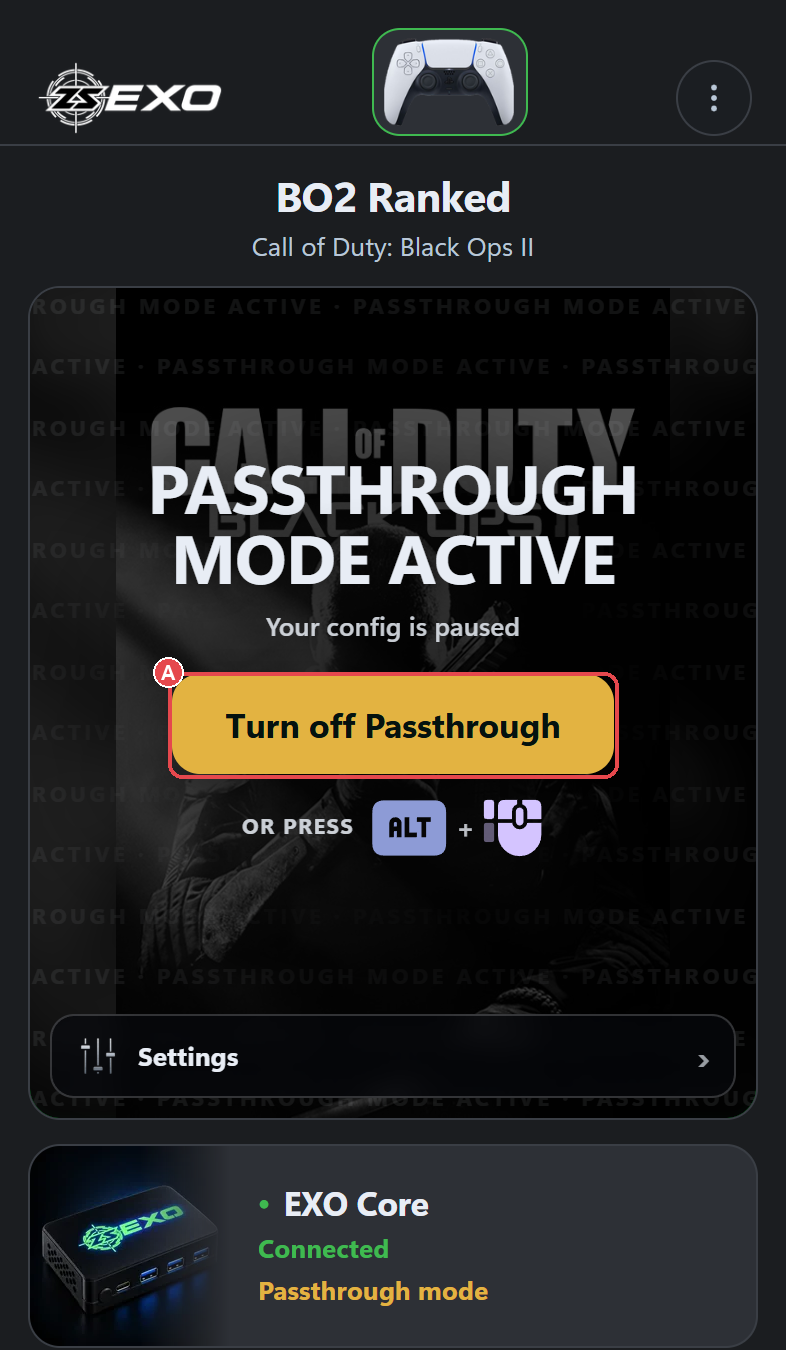
- Tap Turn off Passthrough on the yellow HOME banner.
- Press your shortcut again.
- Use the button in Global Settings → General → Passthrough Mode.
Troubleshooting
| What you see | What to do |
|---|---|
| My aim, scripts or mappings stopped working | Check HOME for the yellow banner. Passthrough is probably on. Turn it off. |
| The shortcut does nothing | Make sure Shortcut buttons is on in Global Settings → General, and that you press both inputs together. |
| I keep turning it on by accident | Change the shortcut to a pair you don't use in game, or switch Shortcut buttons off. |
Related: App tour · Gaming on PC · Troubleshooting